PrintingCenterUSA.com
Your Cart: 0 Items $0.00
1-800-995-1555
File Uploading and FAQ's

Proofing:


•  What should I know about viewing files on my monitor? You might notice that the colors on the printed piece may not exactly match the colors you see on your monitor. The age and or calibration of your monitor can affect the colors in comparison to the printed product.


Why are “L’s” and “I’s” appearing bold and thick on my proof?  This is only the low-resolution proof and is a result of converting fonts to outlines.  If you zoom in on your proof, they will appear as usual.  The letters will print normally.


How do I save and view my proof later? If you wish to save and view your proof later, it will be saved as a PDF and can be viewed with Acrobat reader 9.0.  A free download is available.


Uploading:

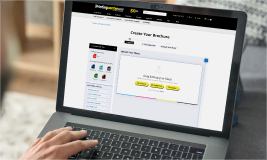
How do I get my files to you? Log in to your account.  Select the correlating product quote or create a new quote. Select Add File and select your files.  You can always send a CD or DVD via mail to 117 9th St. N. Great Falls, MT 59401. Be sure to include contact information and quote number in your package.


Can I send you a PDF file? Yes, we accept PDF files. Be sure the PDF contains bleeds, if necessary, and that it has not been downsampled. What is downsampled?


How do I send my files without having missing fonts and other components? If you are sending files created in the follow applications, you may want to go through the corresponding steps:


Pagemaker

1. Go to top menu bar under "Utilities"
2. Scroll down to "Plug Ins"
3. Scroll down to "Save For Service Provider"
4. Follow prompts until you have a completed folder with all elements intact


Illustrator

1. Change all fonts to outlines
2. Embed all images used from your links palette
3. Save as a PDF by choosing PDFX 3 from choices given


InDesign

1. Change all fonts to outlines
2. Embed all images used from your links palette
3. Go to top menu bar under "File"
4. Scroll down to "Adobe PDF Presets"
5. Choose PDFX 3 from choices given
6. Or scroll down to "Package" and follow prompts until you have a completed folder with all elements intact


QuarkXpress

1. Go to top menu bar under "File"
2. Scroll down to "Collect For Output"
3. Follow prompts until you have a completed folder with all elements intact


Freehand

1. Change all fonts to outlines
2. Go to top menu bar under "File"
3. Scroll down to "Collect For Output"
4. Follow prompts until you have a completed folder with all elements intact


Photoshop

1. Make sure your image size is set at 300dpi (Especially if Text is involved)
2. Save your file


Publisher

1. Go to top menu bar under "File"
2. Scroll down to "Pack N Go"
3. Scroll down to "Commercial Printer"
4. Follow prompts until you have a competed folder with all elements intact


CorelDraw

1. Convert all fonts to curves
2. Go to top menu bar under "File"
3. Scroll down to "Prepare For Service Bureau"
4. Follow prompts until you have a competed folder with all elements intact


PowerPoint

1. Go to top left to the "Office Button"
2. Scroll down to "Publish", then to "Package To CD"
3. Follow prompts until you have a competed folder with all elements intact


Online Printing Services  >  Help Center  >  Upload and Proof Files


Get A Quote Now
Need Help call or chat for help
Back to help center