














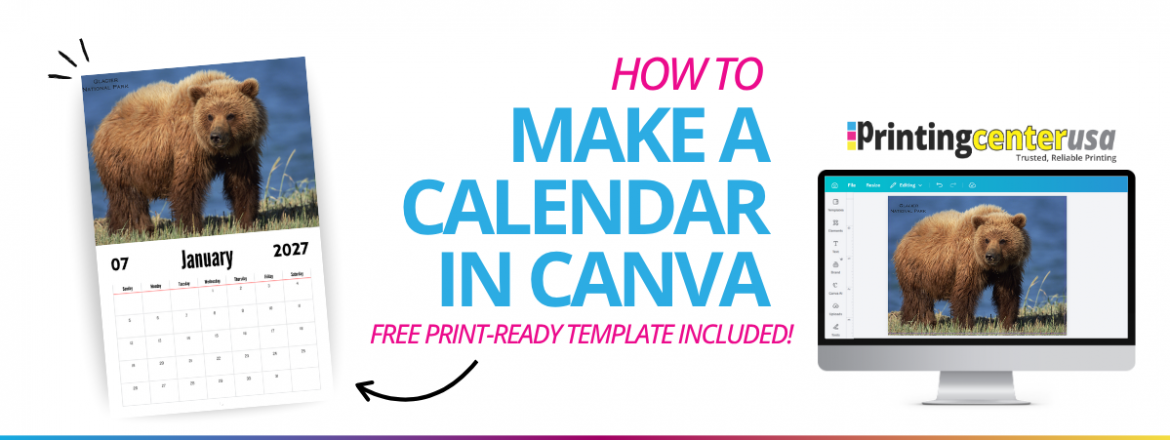
How to Make a Calendar in Canva
Making a printable calendar in Canva is easier than ever, especially if you start with the right template.
At PrintingCenterUSA we believe every design you create should be easy and now we have made it easier than ever for our Canva customers with our free Canva calendar template! Start printing like a pro using Canva’s features like drag-and-drop actions, uploading photos, customize fonts and colors, and create your own custom calendar in just a few clicks.
This is perfect for anyone looking for an easier way to design outside of Adobe apps, Canva is a simple alternative that offers endless customization options without a steep learning curve. Plus, once your design is ready, you can upload it to PrintingCenterUSA for unparalleled printing with vivid color and high-quality paper options.
Ready to get started? Download PrintingCenterUSA’s Canva calendar template here and start designing your custom calendar today!
What is a Canva Calendar Template?
Canva templates are predesigned templates that allow you to drag and drop your ideas into a calendar format. Templates typically have built-in sizing and structure so you’re not starting from scratch.
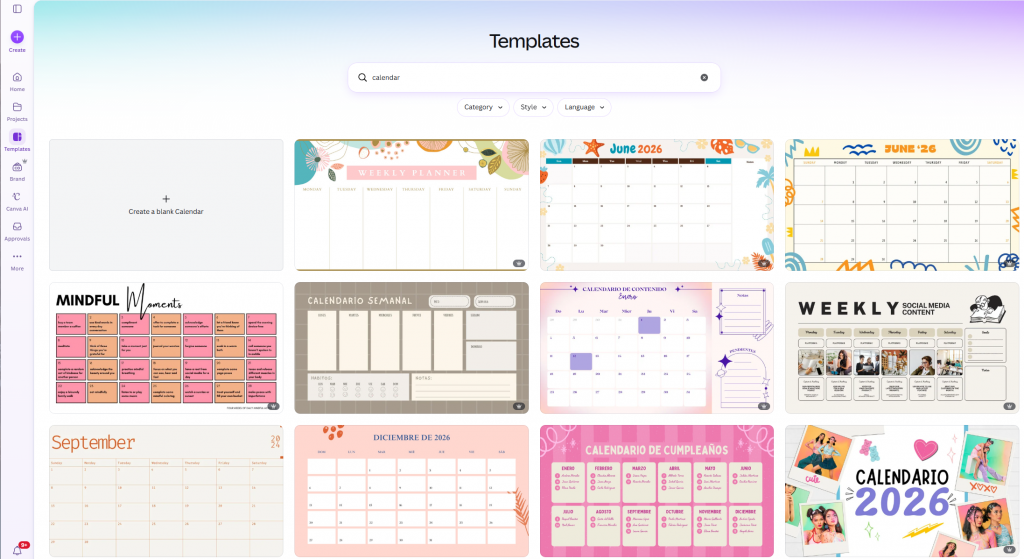
A free Canva account is all you need.
What Is PrintingCenterUSA’s Free Canva Calendar Template?
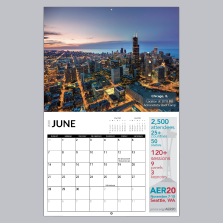
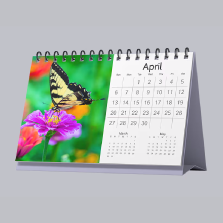
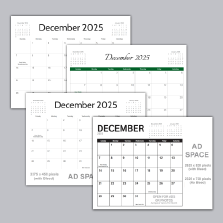
PrintingCenterUSA’s Canva calendar template is preset to be print-ready without worrying about setup or sizing. The template includes the cover page and twelve-monthly layouts, all built with the correct bleed, trim, and safe zones needed for professional printing. This template is available for the 11 x 8.5 format, the most popular size, already aligned with PrintingCenterUSA’s print specifications.
Our Canva template gives you a simple starting point that saves time while ensuring your finished project prints perfectly.
Canva offers plenty of calendar templates but most aren’t set-up for professional printing. They do not have the bleed, trim lines and safe areas, which means your file will probably need corrections before it can be sent to your printer. This saves you time and is a great starting point!
How to Make a Calendar in Canva Step By Step
Getting started with PrintingCenterUSA’s Canva calendar template is easy!
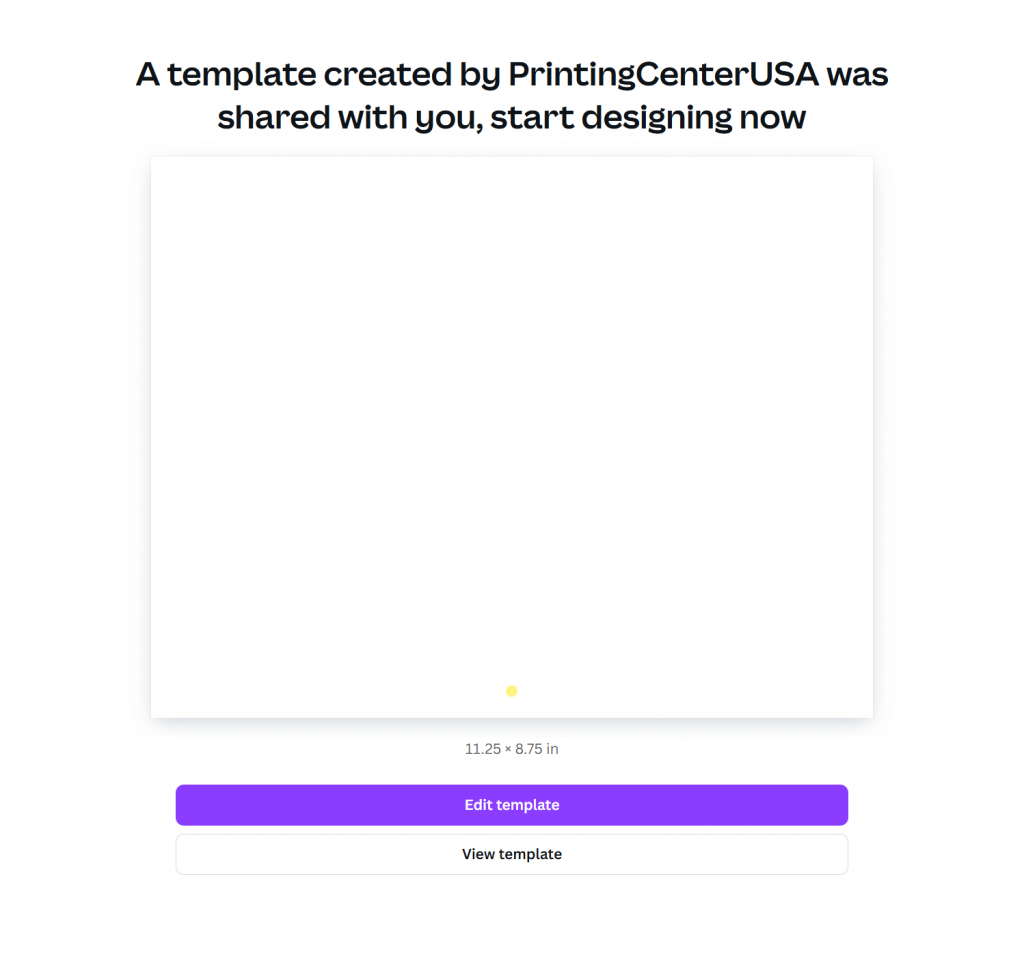
Step 1: Open template here.
Step 2: Click “Edit Template” from the link to open it in your Canva. Once it loads, you’ll have a personal copy on your account to customize. You’ll see a blank 11 x 8.5 canvas for each page with drill hole markers already place. Everything else is yours is to customize! The template includes 28 pages total, which is standard for a printed calendar: a cover, twelve monthly layouts, and two extra pages at the front and back.
Step 3: Use Canva’s table elements to create your grid. Click Elements and search “table” drag and drop it onto your page and adjust the rows and columns to fit your month. Alternatively, go to to the templates section on the left-hand column and search through Canva’s grid options. Pick one that matches the look you’re going for.
Step 4: Upload your own photos via the upload section in the left panel. For the best print results, use images that are 300 DPI. Images around 180 DPI are generally found by customers still okay to print. Use our free file review to see any flagged low resolution images
Step 5: Add text, adjust fonts, and customize colors to match your brand or style. Canva’s drag-and-drop interface makes it easy to adjust layouts and experiment with different looks until you’re happy with the design.
Note: The yellow dots are where your drill holes will be punched after printing. Keep important text outside yellow dots!
How to Export Your Canva Calendar for Printing
Before downloading, take one last look through your design to confirm that images are high resolution, text is readable, and nothing important is too close to the edge.
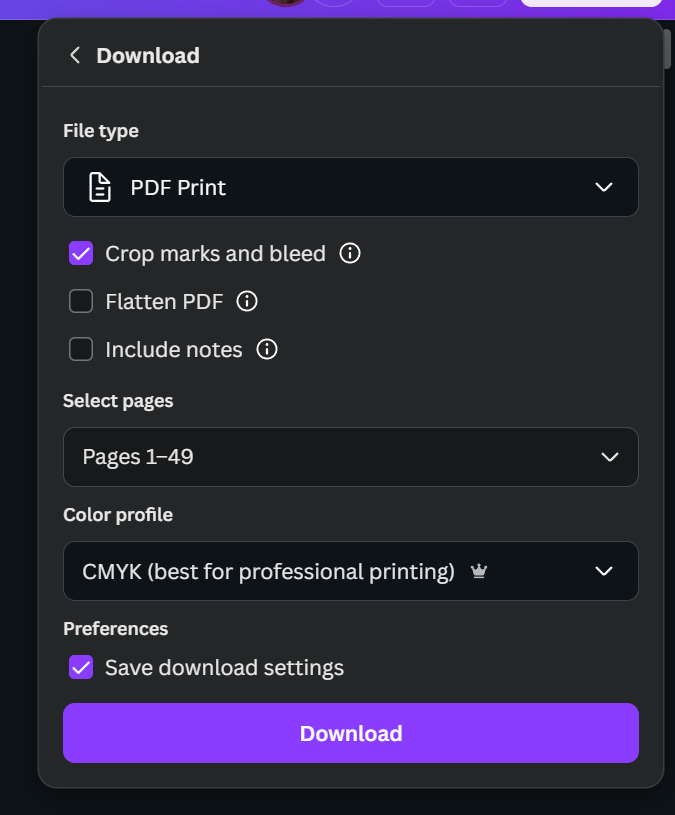
Once your done editing your calendar, save it as a print-ready file for the best results.
Go to Share> Download > PDF print.
Check the boxes for crop marks and bleed and flatten PDF.
If you have Canva Pro, select the CMYK color profile for more accurate color reproduction in print. Finally click download!
Your downloaded PDF will be ready to upload directly to the PrintingCenterUSA calendar printing page
Get Your Canva Calendar Printed at PrintingCenterUSA
When your Canva design is ready, download your design then visit the Calendar Printing page to choose your calendar specs. Upload your print-ready PDF from Canva.
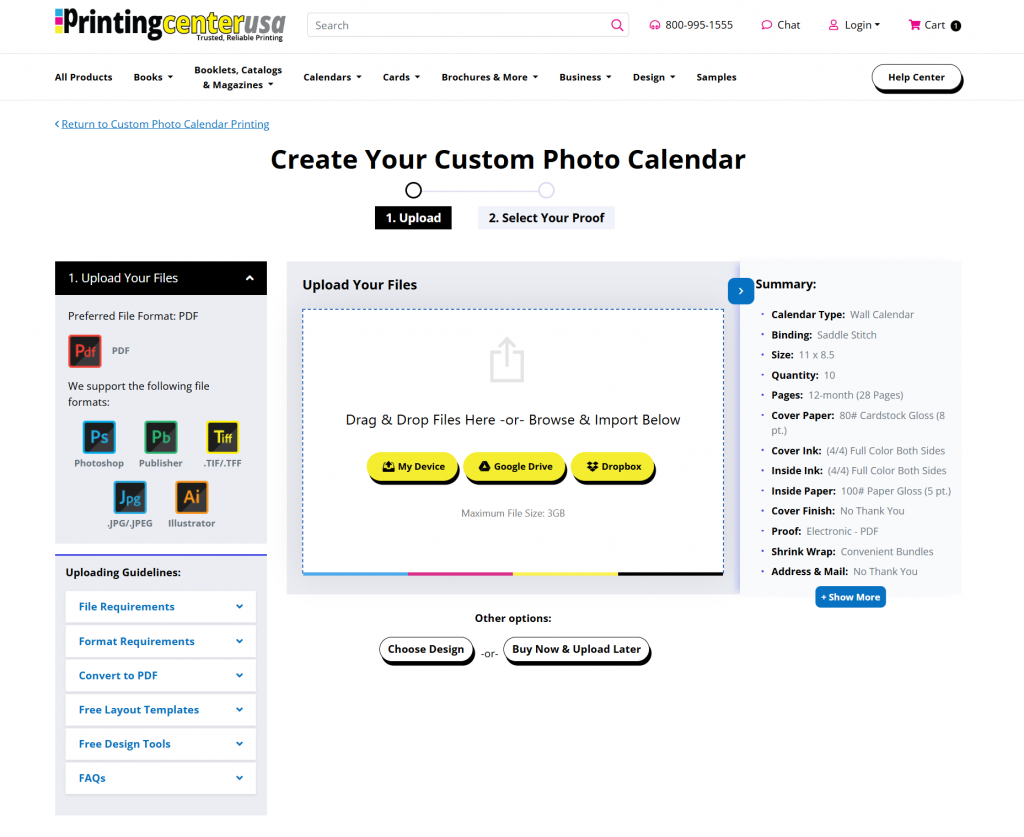
Once approved, your calendars move into production and typically ship within a few business days. PrintingCenterUSA offers standard 3-day, Rush 2-day, and wait and save 4-7 business day turnaround options after proof approval.
With professional color, durable paper, and volume discounts, PrintingCenterUSA makes it easy to turn your Canva design into a beautiful, high-quality printed calendar.
Pro Tips for a Perfect Printable Calendar
Before sending your calendar to print, make sure your design will look as stunning in print as it does on your screen. Here are pro tips for a perfectly printed calendar.
- Use high-resolution photos at 300 DPI
- Keep all important details away from the edges
- Make sure your images extend to the bleed line
- Check Canva’s Print Preview to confirm everything looks just right
- Canva Pro users should export with a CMYK color profile for the most accurate print colors
Businesses have marketing strategies to collect leads and communicate their message to their customers. Here are 4 professional tips businesses use regularly and you can too!
- Add a QR code that links to your website or social media so your customers can connect with you easily
- Include your logo and contact information on each page
- Special themed calendars can create excitement and drive sales. Brand them as limited edition calendars
- Consider printing a few extra copies to send out to your top clients for free as a gift!
Free Calendar Templates
Not a Canva user? No problem! PrintingCenterUSA offers free calendar design tools and templates so anyone can create a beautiful, print-ready calendar with ease.
Free Online Design Tool
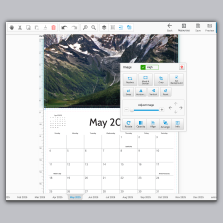
Our Online Design Tool is perfect if you’d rather keep everything in one place. You can upload photos, add text, drag and drop clipart, and preview your project directly on our website with no extra software needed. It’s simple, beginner-friendly, and automatically set up to meet our printing specs.
Free Adobe Templates
For professional designers, we also provide downloadable Adobe templates for InDesign, Illustrator, and Photoshop. Each template includes bleeds, trim lines, and safe zones so your finished calendar prints exactly as expected. Just open, customize, export as a print-ready PDF, and upload to your order page.
Whether you design in Canva, on site, or Adobe, all of our templates are made to help you save time, avoid sizing errors, and get high-quality results. Choose whichever option fits your workflow best and let us handle the rest.
Frequently Asked Questions
How do I make a calendar in Canva? Open PrintingCenterUSA’s free Canva calendar template by clicking Use Template. You’ll get a blank 8.5×11 canvas with 28 pages — cover, twelve monthly layouts, and two extra pages — with drill hole markers already placed. Use Canva’s table or grid elements to build your monthly layout, add your photos and dates, then export as a PDF Print file and upload it to PrintingCenterUSA to get it professionally printed.
What size is a Canva calendar template? PrintingCenterUSA’s free Canva calendar template is preset to 8.5×11 inches, the standard US printed calendar size, with bleed, trim, and safe zones already built in.
Is Canva calendar free? Yes. Canva offers free tools and a free account to build your calendar. PrintingCenterUSA’s Canva calendar template is also free to use. A Canva Pro account is not required, though Pro users can export in CMYK for more accurate print colors.
What file format should I use to print a Canva calendar? Always export as PDF Print. In Canva go to Share > Download, select PDF Print, and check the boxes for crop marks, bleed, and flatten PDF before downloading.
Does Canva export in CMYK? Canva Pro users can select CMYK under Color Profile when exporting as PDF Print. Free Canva accounts export in RGB. PrintingCenterUSA’s prepress team reviews every file before it goes to press.
Should I design all 12 months separately or duplicate pages? Duplicate pages. Once you’ve designed a month you’re happy with, copy that layout across all 12 months and update only the dates and images. This keeps the design consistent and saves significant time.
How many pages does a printed calendar have? PrintingCenterUSA’s Canva calendar template includes 28 pages — a cover, twelve monthly layouts, and two extra pages at the front and back. This is the standard page count for a professionally printed calendar.
Can I use a free Canva account to create a calendar? Yes. PrintingCenterUSA’s free Canva calendar template works with a free Canva account. No Canva Pro subscription is required.
How do I create a calendar on Canva? Open PrintingCenterUSA’s free Canva calendar template, use Canva’s table or grid elements to build your monthly layouts, add your photos and dates, then export as PDF Print.
What are the best free calendar templates? PrintingCenterUSA’s free Canva calendar template is one of the only free calendar templates built specifically for professional printing bleed, trim, and safe zones already included. Unlike most free templates inside Canva, which are designed for screen use, PrintingCenterUSA’s template is aligned to print specifications from the start.
Try PrintingCenterUSA’s Canva Template Today!
Ready to bring your ideas to life? Start designing your own custom calendar with our free Canva calendar template and see how simple professional printing can be. Whether you’re creating for business, art, or personal use, this easy-to-use template helps you get print-perfect results every time.
Before you order, check out PrintingCenterUSA’s calendar printing options to find the right specs for your project:
Download the Canva template and start designing today. Already finished your design?
Upload your file here to get it professionally printed.
Need a hand? Visit our Calendar Printing Help Center or give our friendly support team a call at 800-995-1555 for guidance.