







How to Design a Book: Guide for Beginners
When you design a book, it is one of those things that feels overwhelming until you get started and break each section into steps. Maybe you are working on a cookbook, a memoir, a children’s book, a business manual, or a photo collection, but no matter what the process is the same. Selecting sizes, creating designs, printing, and promotion, each step is important and we have info that will help you at every step of the way when publishing. Our guide walks you through each step so you can go from blank documents to print-ready file with confidence. Visit the book page and download the free printing guide for book creation or start your book project today!
How to Design a Book?
Design your book by choosing a size, selecting a binding style, organizing your content, and creating a consistent layout, preparing high-quality images, then exporting print-ready files. Following a structured process from the start prevents the kind of rework that costs time and money later. Print your book with PrintingCenterUSA!
Choose the Right Size for Your Book
Size is the first decision you make because everything else, typography, imagery, layout, and binding, flows from it. The right size depends on your content type, your audience, and how the book will be used. Let’s explore sizes and how to select the right one for your book!
Standard sizes are the most cost-effective and the most familiar to readers. They print efficiently, ship affordably, and work for the vast majority of book projects. Custom sizes are available when your content genuinely calls for something unique, but they come at a higher production cost and can complicate distribution.
Here is how common sizes map to common book types:
5.5 x 8.5: memoirs, journals, and novels where a compact portable format suits the reading experience
6 x 9: the most common size for nonfiction, business books, and trade paperbacks
8.5 x 11: cookbooks, manuals, textbooks, and workbooks where you need space for both text and images
8 x 8: children’s books, photo books, and square-format creative projects
11 x 8.5 landscape: photo books, art collections, and visual storytelling projects where horizontal layouts shine
Size also affects typography. A larger format gives you room for creative layouts and bigger fonts without feeling limited. A smaller format requires more careful font choices to keep the reading experience comfortable. And imagery scales with your format too. Think of a Tetris like design.
Download a free book template from PrintingCenterUSA to start designing in the right dimensions from the first click.
Step 2: Choose Your Binding Style
Binding affects durability, usability, appearance, and cost. Here is how to match your binding to your project.
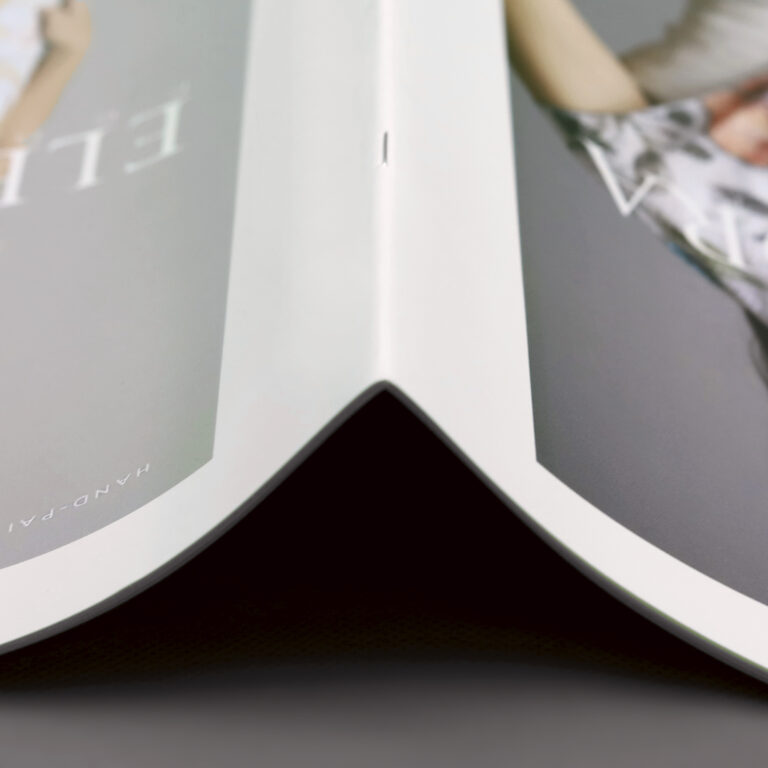
Saddle Stitch:
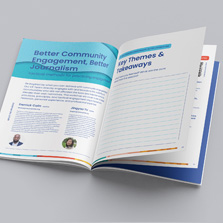
Saddle Stitch binding is folding and stapling pages along the spine.
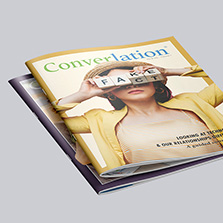
Shorter publications like booklets or magazines up to 64 pages are ideal for saddle stitch booklets.
Saddle Stitch binding is cost-effective and lays flat when open, suitable for lightweight, less frequently used publications.
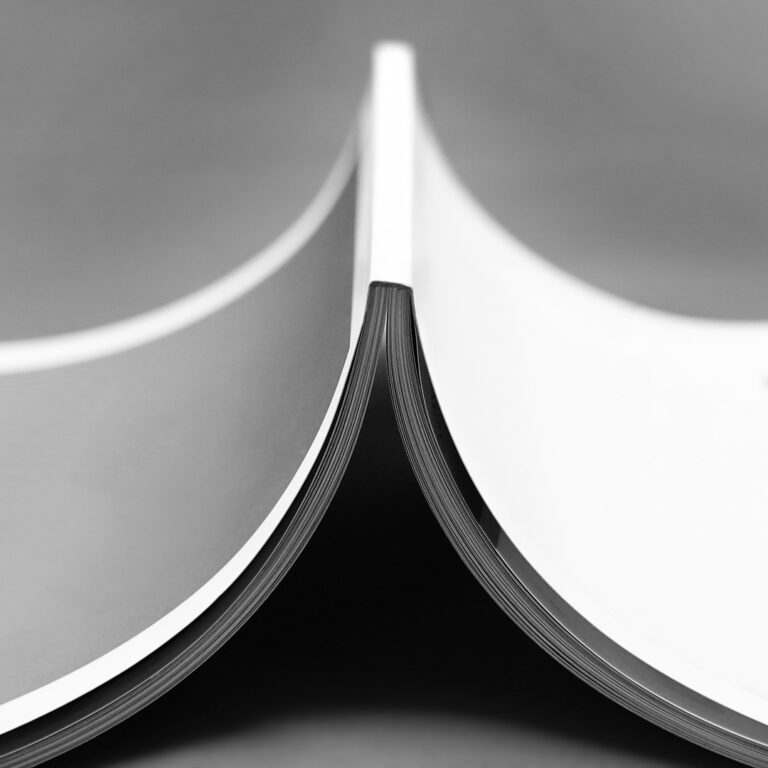
Perfect Bound:
Perfect Bound binding provides a sleek spine suitable for shelf display and can accommodate a higher page count.
The pages and cover are glued at the spine, offering a clean and professional look.
Novels, corporate reports, and thicker magazines are common uses for perfect bound books.
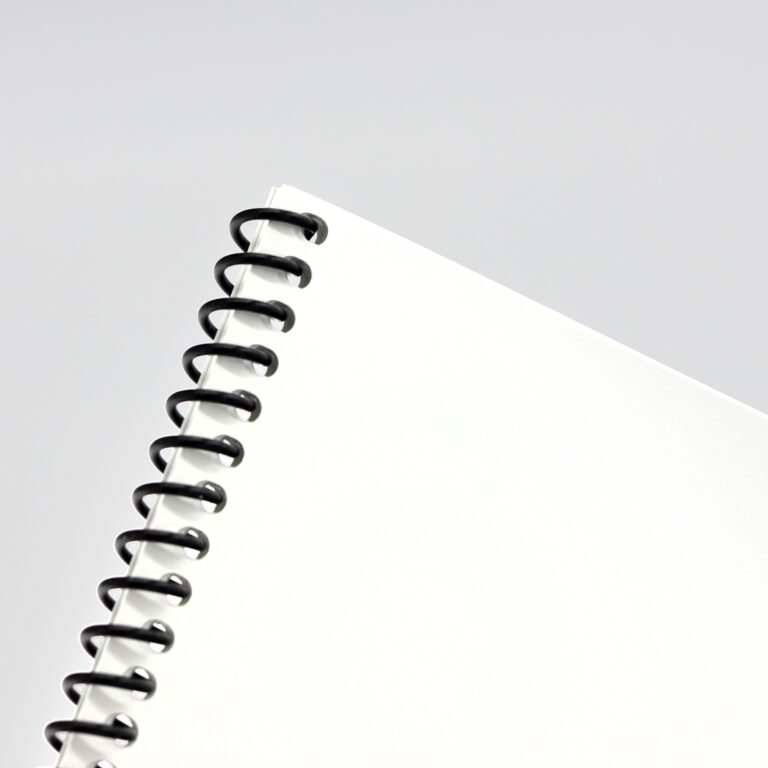
Spiral Binding:
Spiral offers extreme flexibility in usage, perfect for materials that need to stay open hands-free.
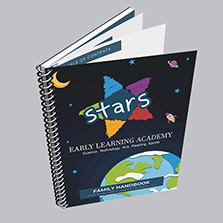
It utilizes a plastic coil to bind pages, allowing the book to lay flat or fold over.
Workbooks, manuals, and educational materials are commonly bound using spiral.
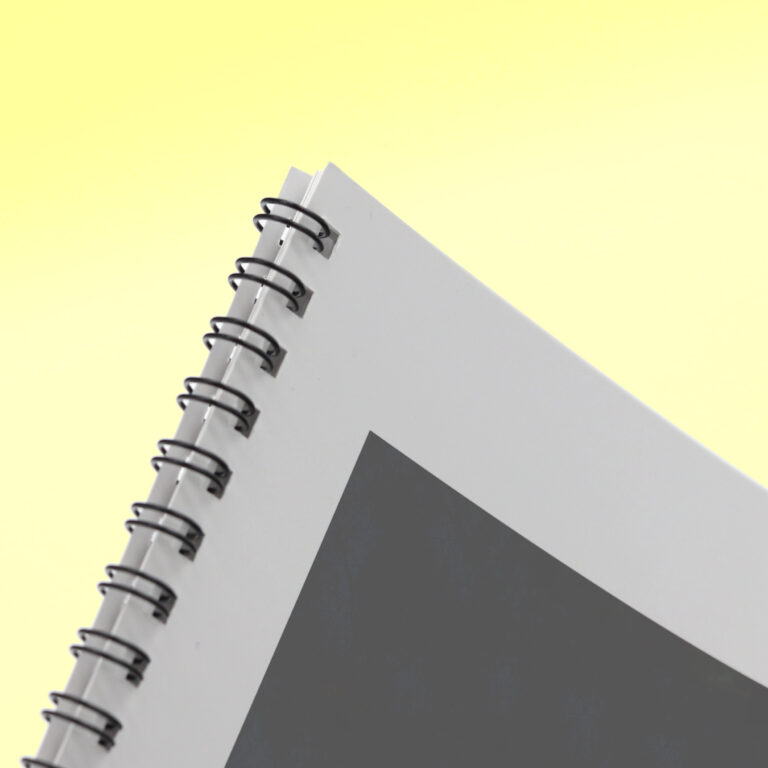
Wire-O Binding:
Wire-O combines durability and a sleek appearance, with the ability to lay flat for easy reference.
Similar to spiral but uses a double-loop wire for a more sophisticated look.
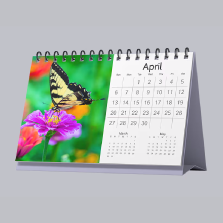
Works great for calendars, recipe books, and professional presentations.
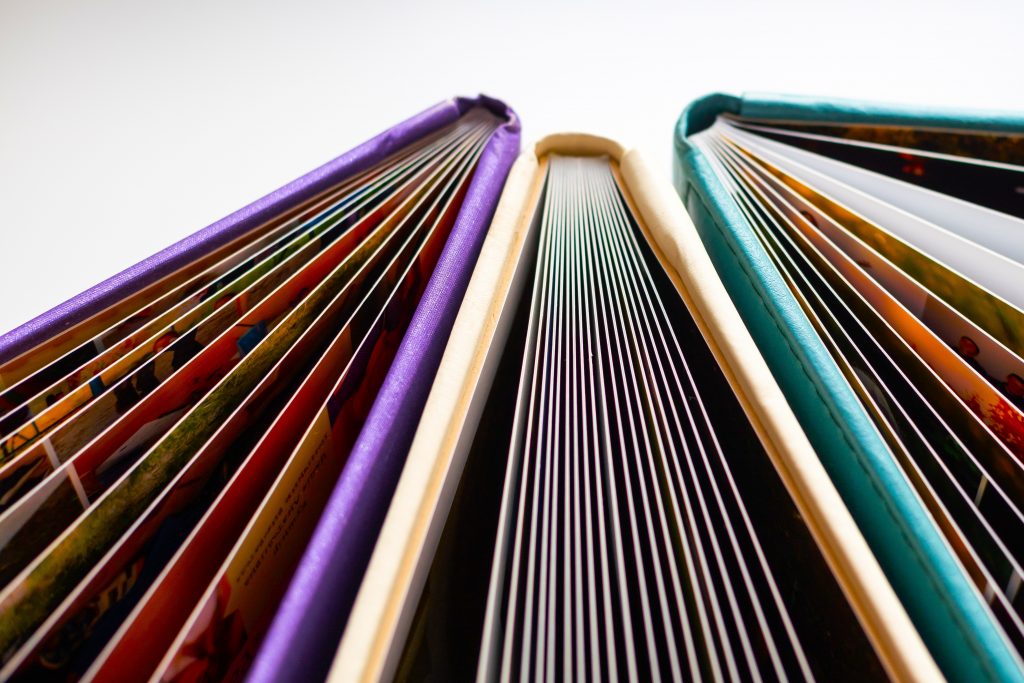
Hardcover Binding:
It features a rigid, durable cover that protects the pages and adds a premium feel.
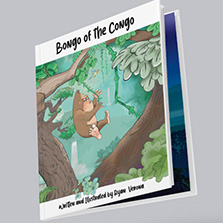
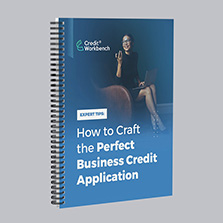
Children’s books, photo books, coffee table books, memoirs, and yearbooks all work best using hardcover binding.
Hardcover offers maximum durability, a professional appearance, and long-lasting value. 📚✨
Not sure which is right for you? Learn more with our video below or explore all our print products here!
Not sure which binding is right for your project? Request a free sample pack from PrintingCenterUSA and feel the difference between binding styles before you commit.

How to Plan a Layout and Build an Outline
One huge time saving step that anyone can get started with early in the process is creating an outline to your book. Think of it as the architectural blueprint for your book. Where does the table of contents go? How are chapters listed? Where do images go and which ones? Are there full-page spreads or cross spreads in this book? Blank pages between sections? Lots of small curiosities can add up to confusion and frustration fast!
Before you start designing, map out your book!
- Create a table of contents
- Organize chapters or sections
- Decide where images will appear
- Plan page numbers and navigation
- Choose image layouts (full-page, spreads, or alongside text)
- Estimate your final page count
Your outline should come before you design your book. This will save a ton of time later on and will give you a good baseline to work from as you build your project. Images might be one of the most important considerations in this process. Decide are they full-page bleeds, tiled layouts, single images centered on the page, or integrated with text? Save hours of work and give your book the outline it deserves.
After your outline is complete, and it doesn’t have to be perfect, add navigation like page numbers, chapter titles, and a table of contents. Page numbers are important for many types of books and should be included on the outside corners or centered. If you center your page numbers, you won’t have to worry about correcting the arrangement when it comes to print. Chapter titles create a professional look across the design that is unmatched in comparison. It will help readers identify sections you want them to spend time in without overcomplicating the experience. The table of contents are just as important to you as they are to the reader. Giving you and them a full scope of what is to come. Be sure to include these 3 things so your book stands out on the shelf.
How to Set Up Margins and Bleed for a Book Design
Getting your margins and bleeds right at the start of your design process is one of the most important technical decisions you will make. Setting them up incorrectly means going back and adjusting every page after the fact, which is exactly the kind of work nobody wants to do at the end of a project.
Setting up your margins and bleeds correctly helps ensure your book prints exactly as intended.
Margins
- Set outside margins to at least 0.5 inches
- Set binding margins to at least 0.8 inches
- For spiral and wire-o books, use a 0.875-inch binding margin
- Keep text, page numbers, and important content inside the safe area
Bleeds
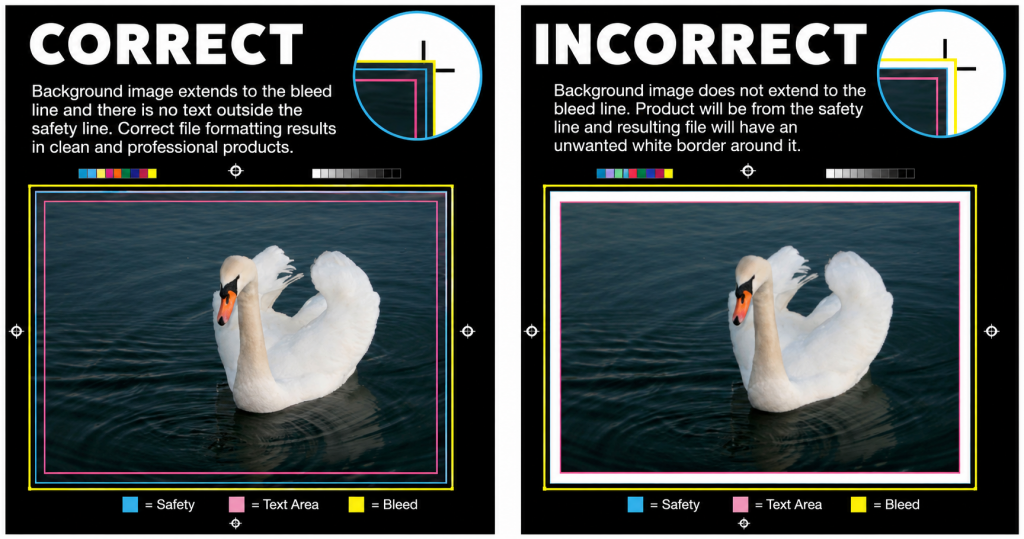
- Use a 0.125-inch bleed for images that extend to the edge of the page
- Extend backgrounds and graphics beyond the trim line
- Set up bleeds at the beginning of your design process
- Double-check that all full-page images reach the bleed line
Use our free Adobe templates for your book size and binding type and all of these settings are already configured for you.
How to Choose the Right Fonts and Typography
The fonts you choose, and how you use them, shape the entire reading experience. Limit yourself to three to five font types and weights across the entire project. Consistency is what makes a book feel intentional rather than assembled. If you choose a font family that includes multiple weights like bold, italic, regular, and thin, you can create hierarchy and variety without introducing additional typefaces. Ensure you have the brand kit to utilize.
For font sizes, here is a reliable starting framework:
Chapter titles: 24 to 36 pt for a bold graphic presence that helps readers follow the structure.
Primary headers: 16 to 24 pt to separate major sections clearly.
Subheaders: 12 pt bold to distinguish subsections without competing with primary headers.
Body copy: 10 to 12 pt regular. Many designers use 12 pt because it feels safe but 10 pt is actually perfect for clean readable fonts.
Page numbers and footnotes: 8 pt smaller so they register as navigational rather than content.
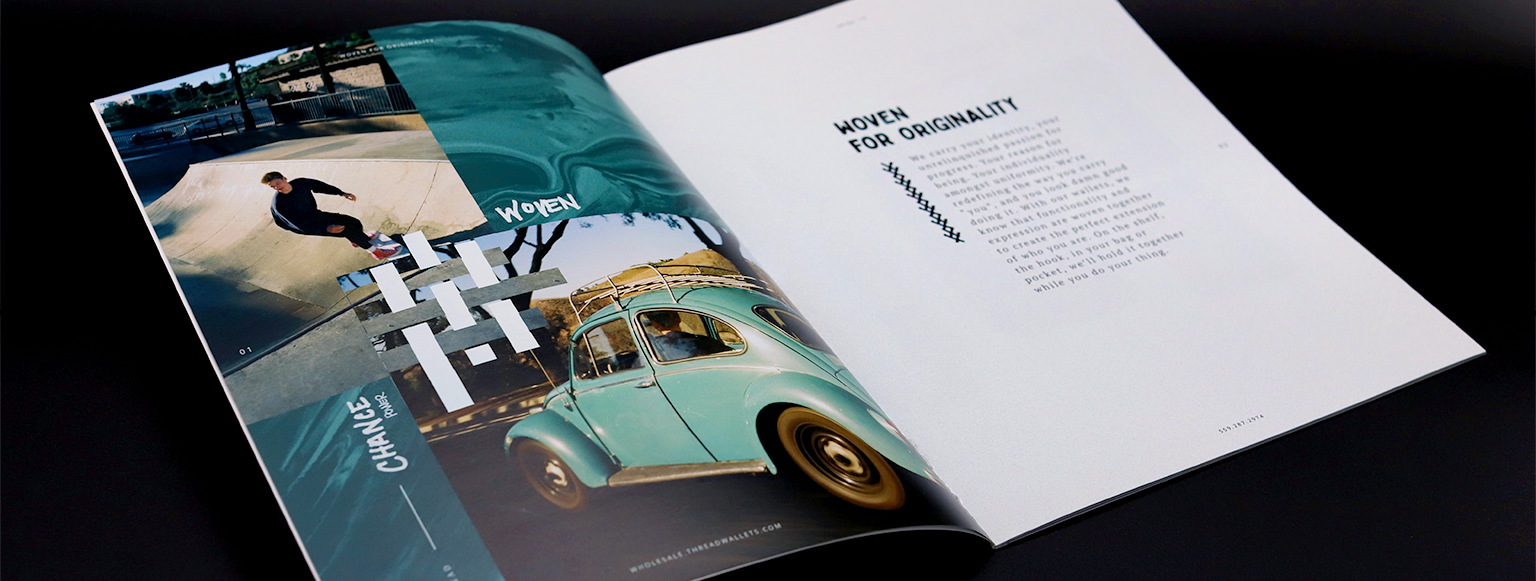
Set your font size rules at the beginning of the project and stick to them. It is much easier to maintain consistency when the rules are established before you have 200 pages to go back and fix.
Select High-Quality Images
Images make or break a book design. A stunning photo printed at the wrong resolution looks blurry and amateurish. A mediocre image at the right resolution still looks mediocre. Both matter.
For print, images should be 300 DPI minimum. This is the standard for professional print quality. At 300 DPI your images will be crisp, detailed, and rich in color. The minimum acceptable resolution for print is 200 DPI.
The most common mistake is pulling images from the web or downloading them through email or social media. Web images are 72 DPI by default because screens do not need more than that to look sharp. A 72 DPI image that looks fine on your phone will print fuzzy and pixelated. Always pull images directly from your camera or original source files.
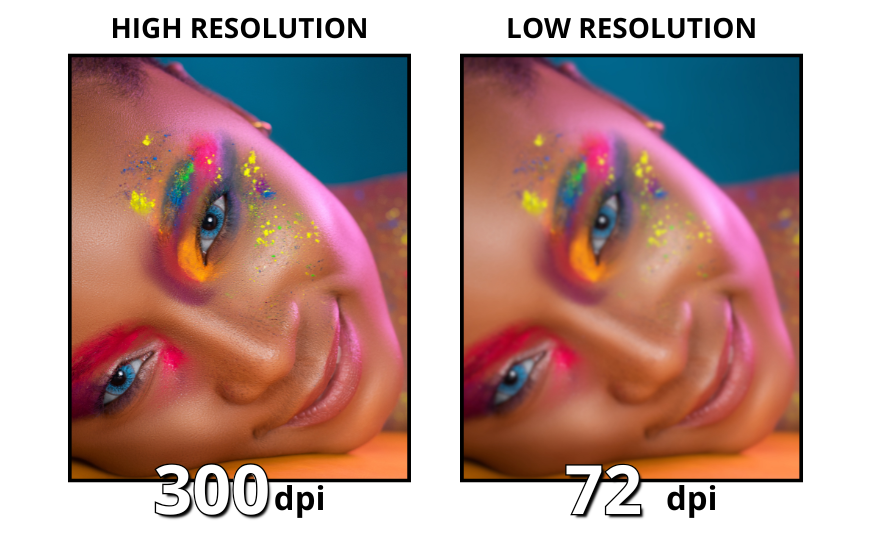
For design elements like logos, icons, and graphic shapes, use vector files whenever possible. Vector graphics are scalable without any loss of quality, which means they look just as sharp at full page size as they do at a quarter inch. If vector files are not available, apply the same 300 DPI standard to any raster graphics you use.
How to Export Your Print-Ready Files
Exporting your file correctly is the last step between your design and your finished book. Getting it wrong at this stage can delay your order or result in a print that does not match your design. Check for these things before you export to ensure everything looks good and will turn out the way you imagined.
Pages should be in consecutive order as single pages, not spreads. PrintingCenterUSA handles page imposition during production, so your job is to upload a clean, ordered single-page PDF.
All images should be at 300 DPI and embedded in the file rather than linked. Linked images that live on your hard drive will not travel with your PDF and can result in missing images in your final file.
Fonts should be embedded or outlined. If your fonts are not embedded, they may substitute on our end and change the appearance of your text.
Bleed should extend 0.125 inches beyond the trim line on all sides where content bleeds off the page.
Margins should be confirmed before export. Run through your pages and make sure nothing critical is sitting too close to the trim line or the binding edge.
Export as a PDF and use our free file review before placing your order. Our 43-point inspection will check your file for any issues before it goes to press so you are not discovering problems after your order is in production.
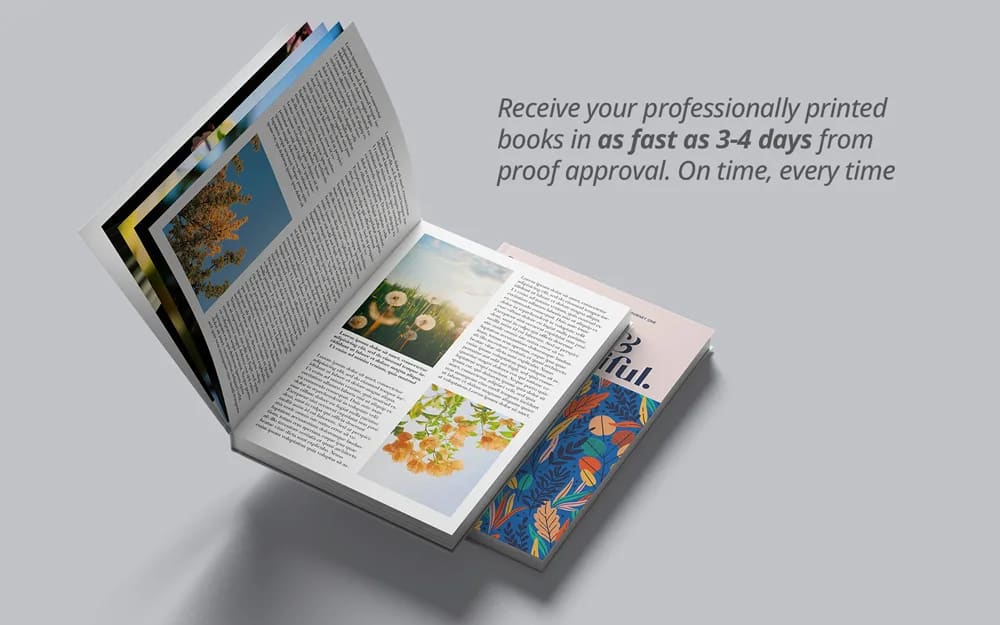
How to Design Your Book in Canva
Canva has become one of the most popular tools for designing books, especially for first-time authors and small business owners who want professional results without a steep learning curve. Canva is super beginner-friendly and produces print-ready PDFs when exported correctly.
To design a book in Canva, set your document dimensions to match your chosen book size before you start adding content. Canva will let you set custom dimensions so you can work in the exact trim size of your book. Design each page individually in the correct consecutive order and keep your margins and bleeds in mind as you go.
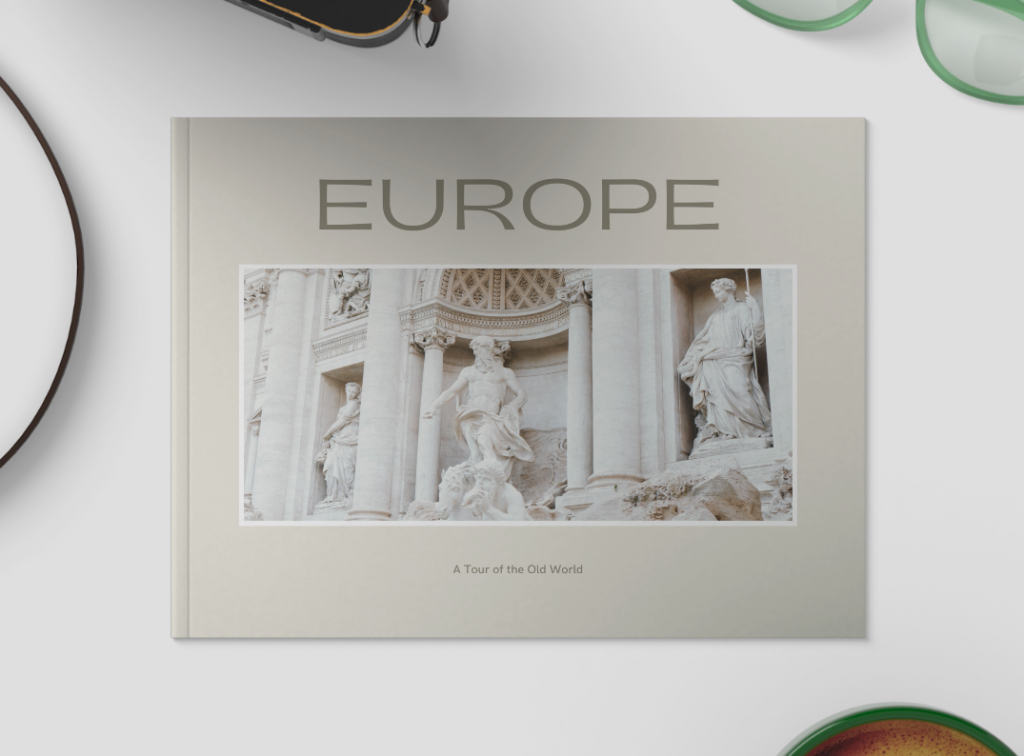
Many of our customers design their books in Canva because it is one of the easiest tools for creating professional designs while still on a budget and being user friendly for beginners. To make printing simple, we found a ready to use book template you can customize in minutes. Just drag and drop your photos, add your copy, and your design is ready for print. Start with the template here: CANVA TEMPLATE LINK.
When your design is complete, make sure you download the file correctly for professional printing. Follow our step-by-step guide here to learn how to export your Canva design for print.
Tips for a Professional Looking Book Design
Use High-Resolution images and branded themes in your design that enhance the book. Get your images to 300DPI or higher and use your brand kit to create a seamless, quality design.
Your brand kit has matching and cohesive fonts you can use across the entire book design. Usually, brands have 3-5 different fonts in their brand kit to help with the awareness part of the marketing funnel for their business.
Want to enhance your users experience? Incorporate interesting and engaging hooks and stories throughout your book.
Partner with meaningful connections that strengthen the brand and grow your audience.
Ready to Turn Your Print Projects Into Rewards?
If you’re a creator, author, designer, or growing business, did you know the PCUSA Creator & Partner Network was built for you? Share your work, tell your story, and earn print credit or even cash just for participating! Programs like the Creator Spotlight, Success Stories, Partner Referrals, and the Affiliate Program let you get featured, grow your reach, and earn up to $650 in rewards at no cost to join. It takes just a few minutes. Get started now!
Frequently Asked Questions
What is the best size for a book? The most versatile size for most book projects is 6 x 9, which works well for novels, nonfiction, and business books. For cookbooks and manuals, 8.5 x 11 gives you more room for images and detailed layouts. For children’s books and photo books, 8 x 8 or larger square and landscape formats work best.
What is the standard book margin size? For most books, set outside margins to at least 0.5 inches and binding margins to at least 0.8 inches. For spiral and wire-o binding, set the binding-side margin to 0.875 inches to accommodate the coil.
What resolution should images be for book printing? 300 DPI is the standard for professional print quality. The minimum acceptable resolution is 200 DPI. Web images at 72 DPI are not suitable for print and will appear blurry or pixelated in the finished book.
How many fonts should I use in a book? Limit yourself to three to five font types or weights across the entire project. Using a font family with multiple weights like bold, italic, and regular gives you flexibility without introducing inconsistency.
What file format should I submit for book printing? Submit a print-ready PDF with all pages in consecutive order as single pages, not spreads. Fonts should be embedded or outlined and images should be embedded at 300 DPI with bleeds included where applicable.
Which binding is best for a cookbook? Spiral binding is the most popular choice for cookbooks because pages lay completely flat and rotate 360 degrees, which means the book stays open on the counter hands-free while you cook. Perfect binding is a good option if you want a more formal bookstore-style appearance.
Can I design a book in Canva? Yes. Canva produces print-ready PDFs when exported as a PDF Print file and works well for straightforward book layouts. Set your document dimensions to your book’s trim size, design pages in order, and follow our guide on exporting Canva files for print before uploading.
What is the difference between margins and bleeds? Margins are the safe zone inside your page where all important content should live. Bleeds are the extra 0.125 inches of image or background that extends beyond the trim line to ensure no white edges appear after cutting. Both need to be set up correctly in your template before you start designing.
Free Tools & Resources to Get You Started with Your Book Design
Use our free online book designer, download a free Adobe template for your book size and binding type. Order a free sample pack today and explore our paper and binding options! If you would rather focus on your content and leave the design to someone else, our Find a Designer service connects you with professionals who specialize in print-ready book design. Start your book project today!