










How to Use PrintingCenterUSA’s Calendar Maker Online Free
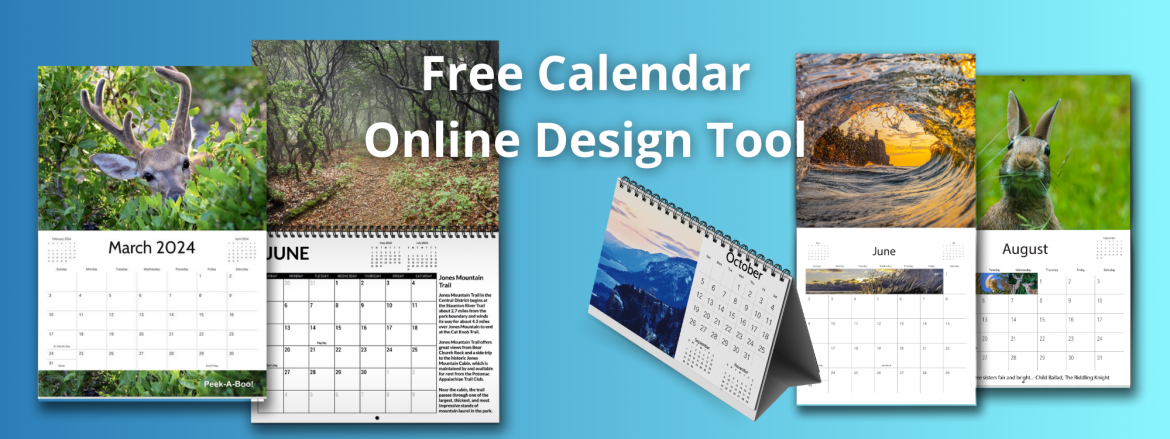
Your calendar doesn’t have to be boring, and the calendar-making process doesn’t have to be hard. PrintingCenterUSA’s free calendar maker online lets you build a fully custom printed calendar right in your browser. All you have to do is pick your size, drop in your photos, add any special events, and order. Then wait for your calendars. That’s it.
Whether you’re a photographer selling your work, a small business doing a giveaway, an organization running a fundraiser, or just making something fun for your family, start here. Let’s go over everything you need to know about our online design tool to make the process as easy as possible.
How to Use PrintingCenterUSA’s Free Calendar Maker Online
Getting started is straightforward. Here’s how:
- Go to PrintingCenterUSA’s calendar printing page
- Scroll down to “Free Design Tool” under the calendar resources
- Click “Start Your Design Now”
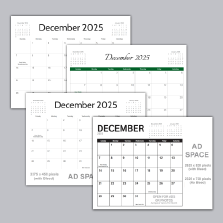
- Pick your size, layout, and grid design
- Start designing!
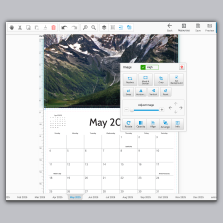
Once you’re in, you’ll see six customization sections in the sidebar: Text, Images, Background, Clipart, Events, and Page Layout. Each one is covered below.
How to Add Text to Your Calendar Design
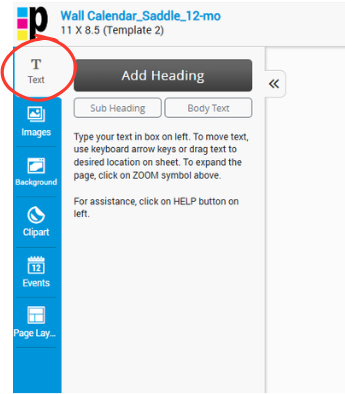
In PrintingCenterUSA’s calendar design tool, select “Text” from the sidebar. It’ll pop out and give you three options: Heading, Subheading, and Body Text. Click whichever fits, type directly onto the text box, and a typography editor appears on the page. From there you can change the font, size, and color to match the rest of your layout.
Keep body text at 8pt or larger so it’s legible once printed, and stick to one or two fonts max to keep things looking clean.
Most calendars don’t use text to its full potential! Titles, quotes, goal reminders, captions, they’re turn a calendar into helpful tools. Instead of just adding names to birthdays, here are 25 creative ways to use text in your calendar:
- Birthdays and Anniversaries: Call them out with a decorative font
- Inspirational Quotes: Add a motivational quote at the top of each month
- Monthly Goals: Give each month a focus word or intention
- Fun Facts: Drop in a history or nature fact for each month
- Daily Affirmations: Short and positive, one per day
- Event Reminders: Use bold, colorful text to make dates pop
- Seasonal Greetings: “Hello Spring!” goes a long way
- To-Do Lists: Add a small list column alongside the grid
- Recipes: Feature a seasonal recipe in a designated text area
- Photo Captions: Give your images context with a quick line
- Book Recommendations: One book per month with a short description
- Workout Challenges: A mini challenge or tip for each month
- Travel Plans: Highlight trip dates with a fun font
- Important Deadlines: Bold and red so nothing gets missed
- Holidays and Festivals: List major and local dates in festive fonts
- Monthly Reflection: A small space to note wins and lessons
- Weather Notes: Typical weather patterns for the month
- Pet Care Tips: Vet appointments, grooming days, birthdays
- Gardening Tips: When to plant, when to harvest
- School Events: Deadlines, games, graduations
- Meal Planning: Weekly or monthly meal prep space
- Daily Gratitude: A small section to jot something down each day
- Family Fun Ideas: One activity suggestion per month
- Financial Goals: Savings targets or budget reminders
- Language Learning: A word or phrase in a new language each month
How to Add Images to Your Calendar Design
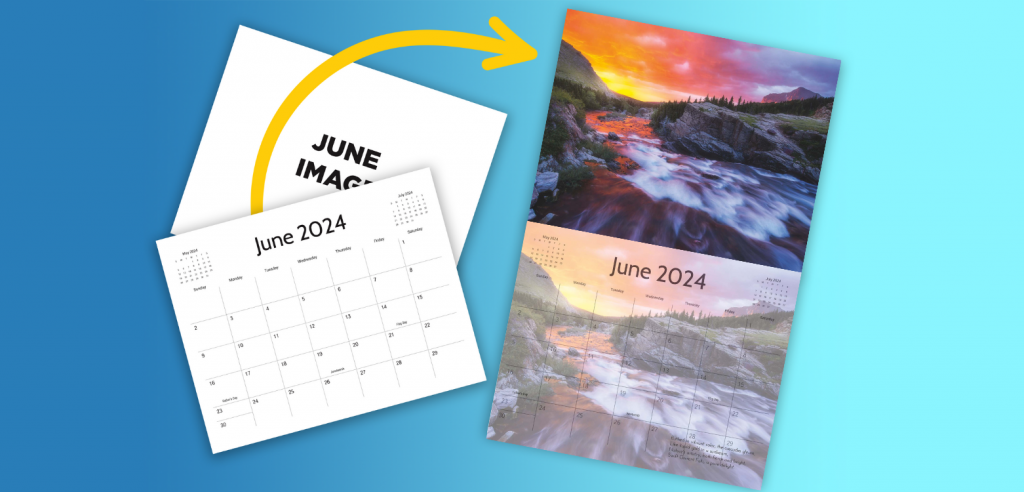
In PrintingCenterUSA’s calendar design tool, select “Images” from the sidebar. From there you can either upload your own photos or browse the stock image library. Once an image is placed, you have full control over the size, placement, and cropping directly on the page.

Before you upload anything, make sure your images are 300 DPI or higher. Anything lower can print blurry.
Think about your theme before you start adding photos. Knowing your vibe upfront makes the whole process faster and the final product look way more put together. Here are some cool ways to use images in your design:
- Got a collection of great shots? Your calendar is the perfect place to put them to work.
- Match the mood to the month. Warm tones for fall, bright colors for summer, cozy textures for winter.
- Into food, sports, animals, travel? Build your theme around what you love.
- Fill the grid spaces on special days. It makes the design feel intentional and gives people something to look at every single day.
- A photo of a destination, a goal, or a product can work as a visual cue without needing any text.
- A background image fills white space and keeps things interesting without cluttering the layout. Make it slightly transparent so it’s not super distracting.
- Add a QR code to link your printed calendar to a website, portfolio, or online schedule.
How to Use Backgrounds in Your Calendar Design
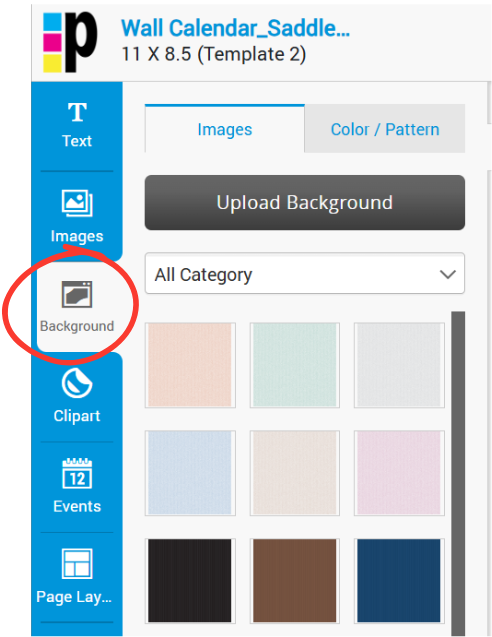
In PrintingCenterUSA’s calendar design tool, select “Background” from the sidebar. You’ll find a library of images and patterns to choose from, and you can also upload your own.
Check the tabs at the top of the sidebar to switch between images and patterns.
A good background does a lot of heavy lifting. It sets the mood, fills white space, and ties the whole design together without you having to add more photos or clipart. A few ways to use it well:
- Add a border to frame your calendar.
- Drop a background into the grid itself. It makes the date boxes easier to read and adds a layer of visual interest to the part of the calendar people look at most.
- Try a pattern. Subtle patterns add personality without competing with your photos or text.
- Adjust the opacity. Dialing it back keeps your background from overpowering the rest of your design and makes text way easier to read on top of it.
- Change it seasonally. Different backgrounds for different months make the calendar feel new every time someone flips the page.
Calendar Clipart Ideas for Your Design
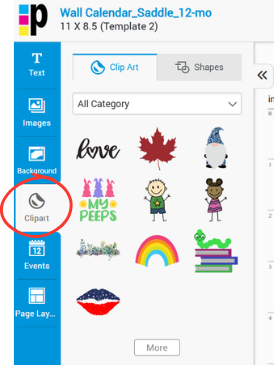
In PrintingCenterUSA’s calendar design tool, select the “Clipart” icon from the sidebar. A library of icons will load and you can browse by category or use the search bar to find exactly what you need.
Check the “Shapes” tab at the top for even more options.
Clipart is one of the easiest ways to add personality to your calendar without adding more photos. A small icon on the right date can communicate way more than text ever could and if you use a universal symbol, it speaks for itself! Here are some ideas beyond the usual holidays and birthdays:
- Seasonal icons like sunshine, snowflakes, or falling leaves to mark the transition between seasons.
- Weather symbols on days you want to track patterns or highlight the summer solstice.
- Dumbbells or running shoes on workout days to keep your fitness schedule visual.
- Food icons to map out meal planning days or mark nights you’re eating out.
- Airplanes or suitcases on travel dates to make the countdown feel real.
- Briefcases or clocks on important work deadlines so nothing sneaks up on you.
- Movie reels or game controllers for family nights so everyone knows what’s coming.
- Paw prints or bones for pet care reminders, vet appointments, or even your pet’s birthday.
- Flowers or gardening tools on planting days throughout the year.
- Books or graduation caps for school events, tests, and deadlines.
- Brooms or cleaning supplies to keep your cleaning schedule on track.
- Paintbrushes or musical notes for hobby days you actually want to protect on the calendar.
- Medical symbols for appointments so they stand out at a glance.
- Spa or meditation icons for self-care days.
- Piggy banks or charts on budgeting days or financial review dates.
How to Add Events to Your Calendar Design
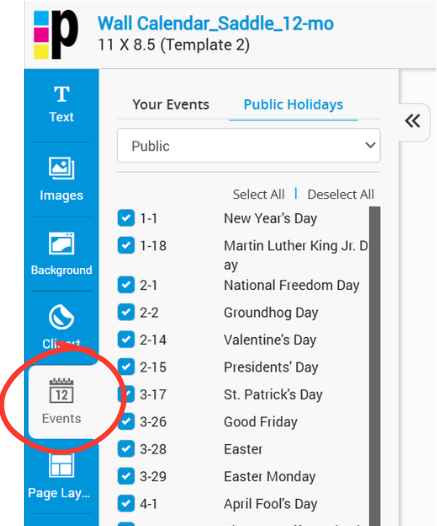
In PrintingCenterUSA’s calendar design tool, find the “Events” tab in the sidebar. At the top you’ll see two sections: “Your Events” and “Public Holidays.” Under Public Holidays, you can select or deselect any major holiday and it’ll automatically update in your design.
Under Your Events, click the calendar icon in the Date tab, pick your date, add a title, hit add, and it populates right into your calendar.
This is one of the most underused features in the tool. Most people stick to birthdays and holidays but there’s a lot more you can do with it:
- Color-code your events by type so work deadlines, birthdays, and personal milestones all look different at a glance.
- Add weird and wacky holidays like National Donut Day or Talk Like a Pirate Day for a fun surprise each month.
- Highlight local festivals, farmers markets, or community events that are specific to your area.
- Mark historical anniversaries like the moon landing or other dates worth knowing.
- Track nature events like moon phases or meteor showers — great for anyone into astronomy or astrology.
- Add pop culture release dates for movies, albums, or video games that your audience actually cares about.
- Include food holidays like National Ice Cream Day because everyone needs a reason to celebrate.
- Flag major sporting events so your calendar doubles as a sports schedule.
- Mark awareness days and charity events for causes you care about.
If you’re designing a calendar for your business, think about what events matter to your customers. A creamery adding National Ice Cream Day. A gym marking the start of marathon season. Small details like that make a calendar feel like it was made for the person holding it.
How to Choose a Page Layout for Your Calendar Design
In PrintingCenterUSA’s calendar design tool, click “Page Layout” in the sidebar. A menu will open with all available layout options ranging from a single image spread to a six-image collage. Pick one, confirm the popup, and your design updates instantly. Not feeling it? Just hit undo.
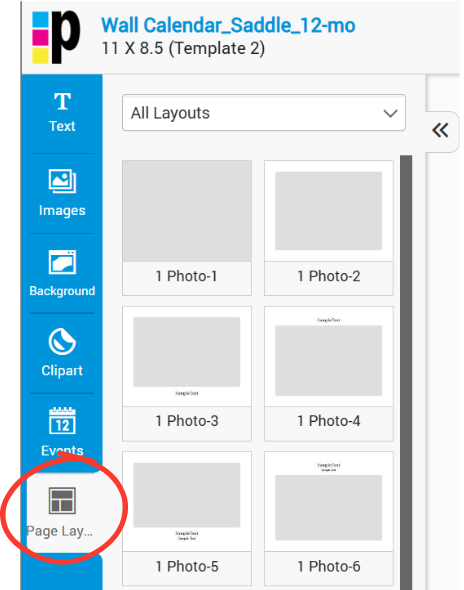
Your layout is what controls how much visual space each month gets and how much room you have for photos, text, and everything else. A few things to keep in mind when you’re choosing:
- Don’t overcrowd it. Leave enough open space so the design feels easy to look at and important info actually stands out.
- Think about where your eye goes first. Lines, color blocks, and shapes can guide someone through the page naturally so they catch every detail.
- Use size to show what matters. Titles should be bigger than body text, cover photos should take up more space than grid images. Hierarchy makes the whole thing easier to read at a glance.
Different layouts completely change the feel of your calendar. A single full-bleed image looks editorial. A six-photo collage feels personal and busy in a good way. Play around with a few before you commit.
Can You Use an Online Calendar Maker to Print a Physical Calendar?
Yes, but not every online calendar maker gives you the same experience. Here’s how the three most common options actually compare.
Canva calendar maker lets you design and order a printed calendar in one place, and the design side is solid. You can customize text, images, backgrounds, and layouts. But when it comes to printing, your binding options are limited to spiral only, and the pricing is on the higher end for what you get. It’s a general design tool that added printing as a feature.
Google Docs lets you build a calendar layout from scratch but that’s where it stops. There’s no print ordering built in. You’d have to export your file, find a print vendor, upload it, make sure your specs are right, and manage the whole process yourself. It works if you have the time and know-how, but it’s a lot of extra steps for something that should be simple.
PrintingCenterUSA’s free calendar maker online was built specifically for print from day one. You get multiple binding options, competitive pricing, professional print specs baked right into the tool, and the ability to add custom events and holidays directly in your design. When you’re done, you add it to your cart and check out.
Here’s how it breaks down side by side:
| PrintingCenterUSA | Canva | Google Docs | |
|---|---|---|---|
| Free to use | Yes | Yes (limited) | Yes |
| Design and order in one place | Yes | Yes | No |
| Customize text, images, layouts | Yes | Yes | Yes |
| Binding options | Multiple | Spiral only | N/A |
| Pricing | Competitive | Expensive | N/A |
| Print specs built in | Yes | No | No |
| Custom events and holidays | Yes | No | No |
If all you need is spiral bound and budget isn’t a concern, the Canva calendar maker gets the job done. If you want more binding options, better pricing, and a tool that was actually built around the printing process from the start, PrintingCenterUSA is the better call. Not feeling the online design tool? No problem. PrintingCenterUSA also offers free Adobe templates and a Canva calendar template so you can design in whatever software works best for you, then upload your finished file.
PrintingCenterUSA’s Custom Calendar Printing
The design tool is free and built right into the ordering process, but the printing side is just as important. Here’s what to know about printing your calendar with PrintingCenterUSA.
You have multiple binding options to choose from, not just spiral. Every order comes with a digital PDF proof so you can review everything before it goes to press. Your calendars will arrive as soon as 3 to 4 business days after proof approval.
And if you get stuck at any point, the customer service team is here to help at 800-995-1555 M-F 7am-6pm MST. Whether it’s a design question, a spec issue, or you just want to talk through your options before you order, real people are available to help you get it right.
FAQ
How do I use PrintingCenterUSA’s calendar maker online free? Go to PrintingCenterUSA’s calendar printing page, scroll down to the Free Design Tool, and click “Start Your Design Now.” Pick your size, layout, and grid design and you’re in. From there you have six customization sections: Text, Images, Background, Clipart, Events, and Page Layout. When your design is done, add it to your cart and check out.
How do I make a calendar online for free?
PrintingCenterUSA’s calendar maker is free to use. You only pay when you’re ready to print. No software, no subscriptions, no file uploads required.
How do I design a calendar?
Start with your theme. Know what photos, colors, and tone you’re going for before you open the tool. From there, build your layout, add your images, drop in text and clipart, and set your events. Having a plan before you start makes the whole process faster and the final product look way more intentional.
How do I design a family calendar?
Pick photos that represent each month, holidays, birthdays, vacations, everyday moments. Use the Events section to add everyone’s birthdays and anniversaries so they auto-populate into the design. Clipart and text are great for calling out school events, sports seasons, and family traditions.
What is the best online tool to make a calendar?
If you want to design and print in one place without exporting files or finding a separate vendor, PrintingCenterUSA’s free calendar maker online is your best option. It’s built specifically for print, has multiple binding options, and is way more affordable than alternatives like the Canva calendar maker.
Can you design a calendar online and get it printed?
Yes. With PrintingCenterUSA’s calendar maker you design and order in the same place. No exporting, no re-uploading, no guessing on print specs. When your design is done, you add it to your cart and check out.
How do I make a calendar in Google Docs?
You can build a basic calendar layout in Google Docs using a table, but there’s no built-in print ordering. You’d have to export your file, find a print vendor, and manage specs yourself. If you want something that actually prints well without extra steps, a tool built for print is a better call.
How do I make a calendar to sell?
Start with a strong theme that appeals to a specific audience wildlife photography, local landmarks, seasonal art. Design each month to feel cohesive. Use high resolution images at 300 DPI or higher so everything looks sharp once printed. PrintingCenterUSA’s calendar maker online lets you design and order in one place, which makes it easy to proof, adjust, and reorder as your sales grow.