










Best AI Tools for Booklet Design
Unless you’ve been living under a rock, you know what AI is. At this point, it’s infiltrated just about everything in every industry, especially in the graphic design world. It’s hard to stray from it. The mentality that typically follows AI is that it’s here to take over your job and everything that you’re doing. It’s scary. However, we need to flip that mentality and understand that AI is a tool. It’s here to speed up your workload and make the whole process a lot less painful. AI is not at a point where we can use what it gives without a human. We’re the ones to shape, control, and edit it. And honestly, it’s really helpful for design. It’s just not the end design. You still have to make it your own. In 2026, you can generate cover art, write body copy, build layouts, and run a preflight check, all with AI assistance. However, most AI tools are built for digital work like social media assistance and UI design not print.
So, this guide breaks down the best AI tools for booklet design. Whether you’re a graphic designer, small business owner, or marketing manager, there’s a right tool for where you’re at in the process.
What Are the Best AI tools for Booklet Design?

- High-Quality AI-Generated Images & Resolution output
- Wide options of different art styles
- Generates better human faces and hands than other AI tools
- Ideal for interior images, and booklet cover concepts
- Raster-based output so needs cleanup before going to press
- No Free-plans
Cost
- Basic Plans start at $10/month
- Standard Plans start at $30/month
- Pro Plan: $60/month
- Mega Plan: $120/month
Think of Midjourney, as your starting point, you will need another tool before it is press-ready. Best For: graphic designers
- Directly integrated into Adobe creative cloud so you don’t have to jump in between tools
- Data is fully licensed which makes it safe for commercial print work
- Generative fill expands, replaces and cleans up images inside your layout (works phenomenally)
- Requires an Adobe Subscription to get full value
- Free credits are limited and run out quickly. (credits do not roll over month to month)
Cost:
- Free tier available (limited credits)
- Starts at $9.99/month
- Included in full creative cloud plans
If you have already started your design in Photoshop, Illustrator, or InDesign, fire-fly is a no-brainer. You’re generating and editing in the same place. You might have even used it already without realizing. Best for: graphic designers
- Ai-first design platform with print workflows built in
- Vector Export
- High-Resolution Output
- Lots of Templates and mockup tools
- Browser Based
Cost:
- Free plan available
- Pro plan: $15/month
- Expert Plan: $30/month
Best For: graphic designers and small business owners
- Best AI for readable text accuracy inside generated images
- Batch generation that can handle 500 prompts at once via CSV
- Editing suite for in-image adjustments without regenerating
Cost:
- Pro Plan ($60/month): Includes 3,000 priority credits per month and unlimited slow credits
- Plus Plan ($20/month): Provides 1,000 priority credits per month and unlimited slow credits. This plan allows for private creations and image deletion, which is essential for protecting unique designs intended for sale
- Free Plan: Limited to 10 slow credits per day, with all creations being public.
- Basic Plan ($8/month): Offers 400 priority credits per month and 100 slow credits per day.
- Generates full layouts from a prompt
- Magic write handles copy right in the design
- Saddle-stitch booklet templates built in
- PDF print export with crop marks included
- No Steep Learning Curve. It’s an easy starting point into AI
Cost:
- Free plan available with Limited AI
- Pro: 15/month
Best for: small business owners and marketing managers
- Image generation had a massive update and image output renders immediately and easily.
- can adjust image generated file size
- Easy booklet prompts
- Rewrites and edits copy
- Output always needs a human edit
Cost:
- Free Plan Available
- Plus: $20/month
Best for: small business owners and marketing managers
What to Look for in an AI Tool for Booklet Design
No matter what tool you end up using, here are key things to look for before setting down with one:
- Where does the AI live in your design workflow? Are you wanting something that can build for you beginning to end? Do you want images only? Figure out how hands on you need the tool for.
- How much cleanup does it need? Is it still going to save you time after editing the output? This doesn’t just go for images. ChatGPT and Claude can write you tons of stuff in minutes but it can feel wrong, sound too much and the information can be incorrect. It might be grammatically fine but not cover your business the way you need it to land with your customer. Edit it. Every time. Verify information. Every time.
- Does it think about print at all? Bleed, CMYK, High-resolution, PDF export. If the tool doesn’t mention or offer these, do you have the means to adjust it properly? For example, Figma is incredible for UI design but it’s not a print tool. Figure out the main purpose of that tool and if you can tweak it for what you need before you spend hours on your layout.
- Is the output commercially licensed? You need to know if the AI-generated content is cleared for commercial use, not every tool is
AI does not know your brand, customer, and what feels right. You do. Use AI to move faster, not to make decisions
How to Write a Good AI Prompt
AI is only as good as what you put into it. Most people open ChatGPT, type something vague, get something vague, use it anyway or give up on AI altogether. Prompting is a skill and it gets better over time with practice. The difference between a bad AI response and a good one is almost always the prompt. The more clearly you communicate, the less time you spend fixing what’s given.
Here are basic prompting tips
- Give it a role. Before you ask AI to do anything, tell it who it is in the mindset of. Think senior copywriter, brand strategist, Editorial director etc. The more specific the role is, the better. If the role you gave it would not change the answer, it’s too vague.
- Start with a clear action. If your prompt does not have a clear action and outcome, the AI is guessing what you want. Do not make it guess. It needs specific clear guardrails. A great starting point is using verbs like write, rewrite, summarize, generate, analyze.
- Give it context. AI has no idea who you are or what your business does unless you tell it. For copy especially, give it everything it needs upfront, who you are, what your business does, who your customer is, who this is for and what success looks like, and what tone you are looking for.
- Show it an example. If you have something previously written from your business, or a style, format, or tone you like, paste it in. “Write in this style” with an actual example will get you further than a paragraph trying to describe the style. Examples show the AI what you define good as instead of assuming. Give an example of what you don’t like as well.
- Break big tasks into steps with specifics. Make sure it’s organized from first, second, third. It keeps the AI from rushing to a bad answer. Do not be afraid to sub prompt, where your main request is split into smaller set of instructions to get better results.
- Add constraints. Tell it what you do not want just as much as what you do. Word count, reading level, things to avoid, tone rules. “No jargon, under 200 words, Grade 8 reading level” is a constraint set. Use it every time.
- Iterate, do not start over. If the output is close but off, build on it. “Keep the same tone but make it shorter” moves faster and uses less tokens. Have specific feedback every time. If you like parts of something, tell it explicitly what you want changed and what should stay the same.
- Verify everything. AI will confidently give you wrong information. A good prompt does not guarantee accurate content.
- Define Success. Tell it how to judge the output before it starts, priorities, and the goal.
How to Write a Good AI Prompt for Images and Design
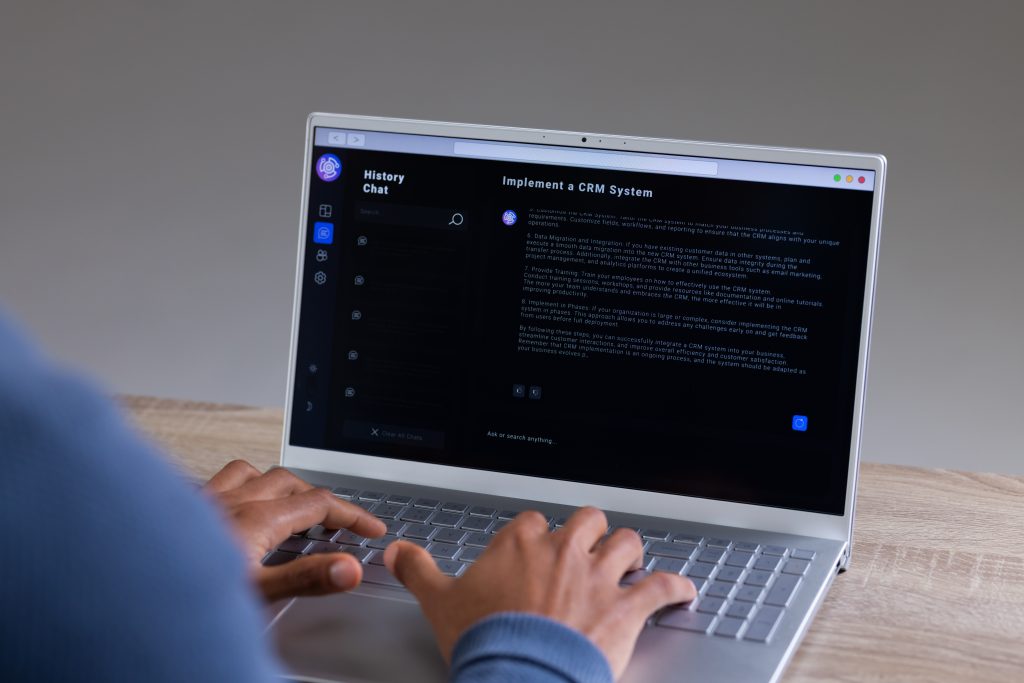
Image prompting is a completely different skill from copy prompting and most people treat them the same way. With copy, you are giving the AI context and direction. With images, you are essentially writing a creative brief that a machine is going to interpret visually. The more you practice describing what you see in your head, the faster you will get outputs that are actually usable. Here is where to start:
Use this formula as your starting point
Subject + Style + Color + Textures + Mood/emotion + Any Text + Output format
Specify the output style. “Vector graphic,” “photorealistic,” “hand-drawn illustration,”
Use negative prompts. Tell it what to leave out. “No text overlay,” “no people,” “no busy backgrounds,” “no drop shadows.” Most image generators accept negative prompts and they save you a ton of cleanup time.
Set your aspect ratio before you generate. Square, landscape, portrait
Reference a mood, not a brand. “Warm and approachable” lands better than referencing a specific brand or artist that might get filtered. Describe the feeling you want, not the thing you are trying to replicate.
Iterate in small moves. Change one thing per round. Color, composition, background, style. Changing everything at once makes it impossible to know what actually fixed the output.
How to Use AI Tools for Booklet Design: Step By Step
Step 1: Before opening/jumping into any tool hone in on what part of the process you need help with. Copy? Imagery? Layout?
Step 2: Build your layout. Set up your bleed at 0.125” on all sides, confirm your document is in CMYK, and build out your pages.
Step 3: Write and refine your copy. Look for older content your business might have on this topic to spark inspiration. Use ChatGPT or Claude to help find missing pieces, grammar issues, or tone adjustments. If you want AI to write the whole thing, give it a context prompt. This should contain who you are, your role, your responsibilities, your business, your audience, your tone and then what you need it to write for you. Be specific as possible. Make sure every prompt has a clear action, if you’re unsure on what that can be, start with: do you understand?
Step 4: Gather your imagery. Start with Midjourney or Ideogram for your cover art and interior pages. If your cover art needs readable text, use Ideogram, if you want a photographic illustrated vibe, go with Midjourney. Download all your outputs, drop them in, and make sure images are set to 300 DPI.
Step 5: Do a Free File Review. Download your file and drop it into PrintingCenterUSA’s free file review for a 43-point inspection and preview to check for issues. If you’re using an adobe product, run Adobe Acrobats’ preflight tool. If anything comes back flagged, fix it before exporting.
Step 6: Export. Export as a PDF
How to Make Your AI-Generated Booklet Design Print-Ready
Resolution
- For high-quality images, print needs minimum of 300 DPI
- AI-generated images are built for screens, which means they are typically 72-96 DPI
- If you are dead-set on an Ai image that is low-resolution, run it through an upscaler before you export. Enhance, and firefly have an upscaler than can increase resolution but its typically best to just replace the image.
Color Mode
- AI tools generate images in RGB, convert to CMYK before exporting for the best color results.
- Always review the converted file before submitting because colors can shift drastically
Bleed and Safe Zones
- You need 0.125” of bleed on every page
- If you use an AI layout tool, you will have to set up the bleed yourself
Font Embedding
- In Acrobat, run the Preflight tool to confirm everything is embedded
- Any custom or non-standard font needs to be embedded in your exported PDF or outlined before export
- In InDesign or Illustrator, go to Type > Create Outlines before you export
How to Design Your Booklet
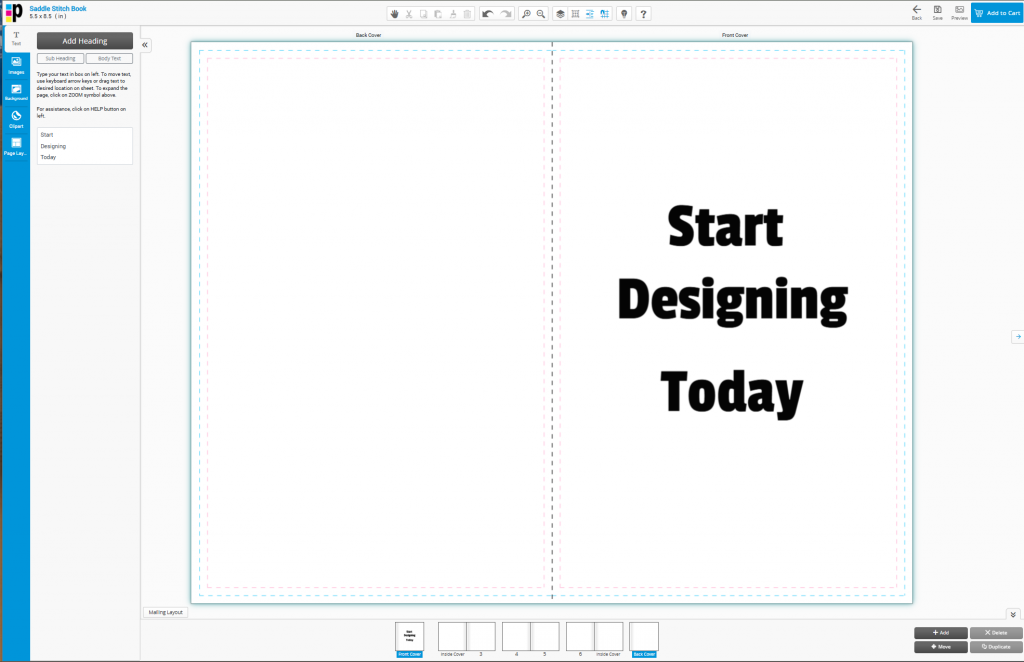
If you don’t have a design software in mind for using your AI generated images, there are plenty of options!
Use Canva from start to finish without its AI tools. Follow our step-by-step guide here to learn how to export your Canva design for print.
Consider designing your booklet online with our free online design tool. You can easily drag and drop your photos, add clip-art, and text. We also have free templates for InDesign, Adobe PDF, illustrator, and Photoshop.
Frequently Asked Questions
What is the best AI tool for booklet design? It depends on what you need. For image generation, Midjourney and Ideogram lead the pack. For full layout design, Canva Magic Studio is the fastest path to a finished file. For copy, ChatGPT handles everything from headlines to body copy in seconds.
Can AI generate print-ready booklet files? Most AI tools generate files that need additional preparation before printing. Resolution, color mode, bleed, and font embedding all need to be verified before submitting. Kittl and Adobe Firefly via InDesign come closest to print-ready output out of the box.
What resolution do AI-generated images need to be for booklet printing? 300 DPI minimum. Most AI-generated images are produced at 72-96 DPI for screen and need to be upscaled before use in a print booklet.
Can I use Canva to design a print-ready booklet? Yes. Canva exports PDF Print files accepted by most online printers. Set up bleed in your document settings, verify your colors in CMYK, and export using PDF Print with crop marks enabled.
How do I check if my booklet PDF is print-ready? Use Adobe Acrobat’s Preflight tool to check resolution, color mode, font embedding, and transparency. You can also paste your file specs into ChatGPT and ask it to generate a custom preflight checklist for your specific setup.
What is the best free AI tool for booklet design? Canva’s free plan covers layout and templates. Ideogram’s free plan gives you 10 generations per day. For copy, ChatGPT’s free plan is strong enough for most booklet projects.
How do I write a good AI prompt for booklet design? Start by giving the AI a role, then a clear action, then context about your business and audience. Add constraints like word count and tone, show it an example if you have one, and iterate in small adjustments rather than starting over every time. The more specific your prompt, the less editing you do on the back end.
Start Your Booklet with Confidence
AI is not going anywhere. The tools on this list are a starting point and the more you use them, the faster you can figure out what works best for your workflow. When your file is ready, we make the printing process easy. Review your booklet printing options today!
PrintingCenterUSA has helped thousands of individuals and businesses bring their booklets to life with professional quality printing, fast turnaround, and a team that actually cares about how your project turns out. Whether you are printing 25 copies for a small event or 25,000 for a national marketing campaign, we are ready to help you get it done right. Still not sure? Request a free sample packet.