






















How to Convert RGB to CMYK
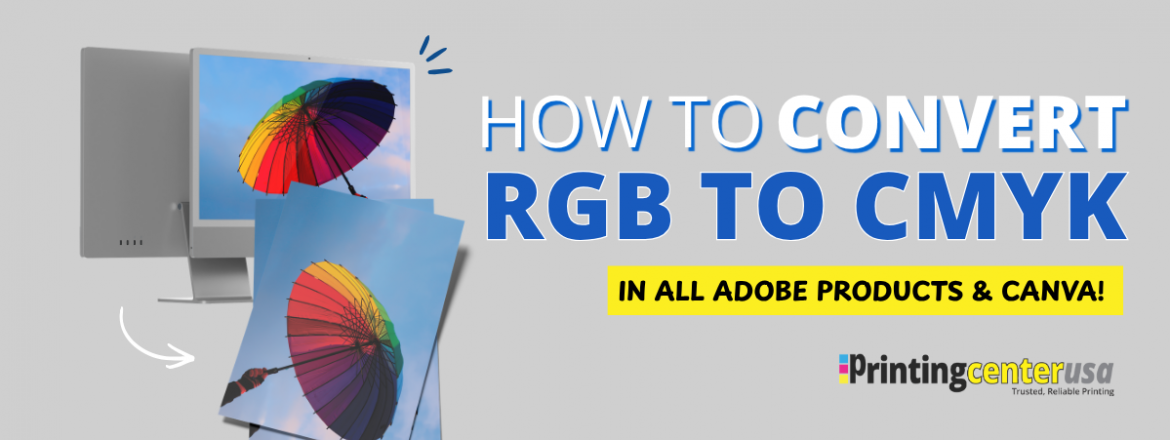
RGB and CMYK are the two color modes you’ll come across when you’re setting up a design document in a program. RGB is the color mode designed for screens. CMYK is the color mode designed for print. One of our most asked questions is, “How do I convert from RGB to CMYK?” Let’s go over how to do this in Photoshop, Illustrator, InDesign, and Canva, plus how to check your colors before you print.
Should I Convert RGB to CMYK for printing?
For printing, you should convert your files from RGB to CMYK beforehand because full-color printing uses CMYK colors, whereas screens use RGB. In order for your project to be printed, your RGB colors have to be converted to CMYK. CMYK cannot produce everything a screen can show, so colors will shift during conversion. When you convert the file yourself, you can see those shifts and adjust them before you print to get the look you want.
You won’t be able to see exactly how your colors will turn out until they’re printed, but converting first gives you the best idea and more control over your project. If you send PrintingCenterUSA an RGB file, we’ll convert it for you automatically, but you won’t see the color shifts until you have the final product or you order a hard copy proof to review your project in person.
How Do I Convert an image from RGB to CMYK in Photoshop?
- In Photoshop, go to File > Open. Choose your image and click Open. You can also click the Open button on the Photoshop home screen.
- Go to File > Save As. Give the file a new name and click Save. This will keep a copy of your original RGB file in case you need it later for any online designs.
- Go to Image > Mode > CMYK Color.
- A pop-up window will come up, and it will say you’re about to convert to CMYK using the “U.S. Web Coated (SWOP) v2” profile. Click OK to convert.
- Go to File > Save to save your CMYK image.
Before you convert, ask your printer if they have specific color settings you can use. PrintingCenterUSA has its own color settings, and we use the GRACoL2013_CRPC6 profile. If you install our custom settings before step 3, the pop-up in step 4 will show our profile. Our Photoshop Color Guide has more details.
How Do I Know If My Photoshop File Is RGB or CMYK?
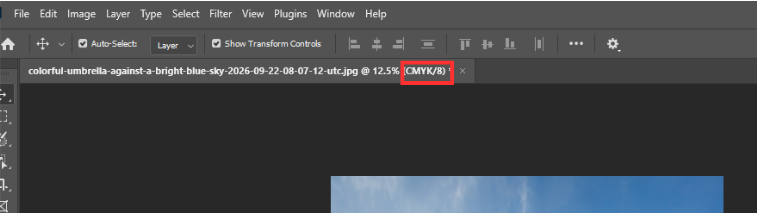
The tab at the top of your artboard shows the color mode in parentheses next to the file name. It’s going to be RGB/8 for an RGB file and CMYK/8 for a CMYK file.
How Do I Start a New CMYK Document in Photoshop?
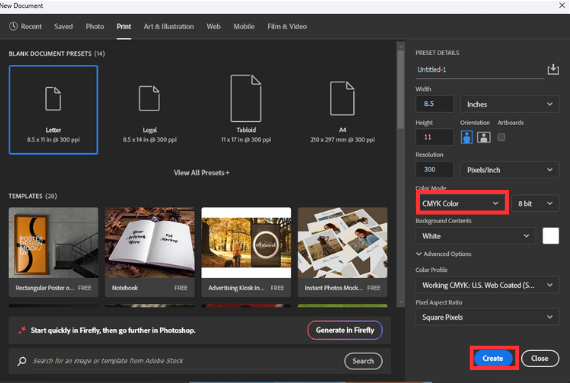
To start a new CMYK document in Photoshop, go to File > New. In the new document window, change Color Mode to CMYK color, then click create.
How Do I Save a Photoshop File as a PDF?
After you install PrintingCenterUSA’s color settings, open your file in Photoshop, then go to File > Save As. In the Save As window, name your file and change the file type to Photoshop PDF. Click Save. This is the best way to keep your colors as accurate as possible.
How Do I Convert a Document From RGB to CMYK Illustrator?
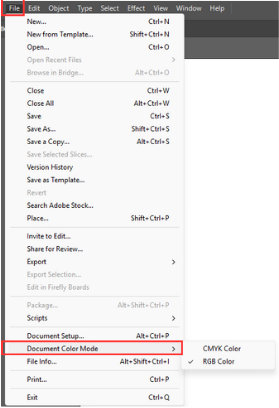
To convert a document from RGB to CMYK in Illustrator, open your file first. Then go to File > Document Color Mode > CMYK Color in the menu bar at the top of the screen.
- Open Illustrator. On the home screen, click Open. If you already have Illustrator open, go to File > Open Instead. Choose your file and click Open
- Go to File > Save as. Give the file a new name and click Save. This keeps a copy of your original RGB file.
- Go to File > Document Color Mode > CMYK Color. Illustrator converts every color in the document to CMYK.
- Go to File > Save to save your CMYK file.
How Do I Know If My Illustrator File is RGB or CMYK
The tab at the top of your Illustrator document shows the color mode in parentheses next to the file name. It’ll have RGB for an RGB file and CMYK for a CMYK file.

How Do I Start A New CMYK Document In Illustrator?
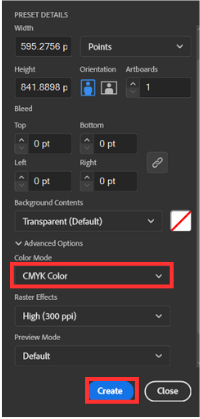
To start a new CMYK document in Illustrator, go to File > New. In the New Document window, change Color Mode to CMYK, then click Create. Setting the color mode to CMYK when creating the document means you won’t have to convert the file later.
How Do I Save An Illustrator File as a PDF?
To save an Illustrator file as a PDF go to File > Save As. Name your file and choose Adobe PDF as the file type and click Save.
In the Save Adobe PDF window choose an Adobe PDF Preset then click Save PDF.
For the best results in printing you always want to export your file as a PDF. If you’re printing with PrintingCenterUSA, we make it easy to export your Illustrator file. Download our PDF preset, import it by going to Edit > Adobe PDF Presets > Import, then choose PrintingCenterUSA from the Adobe PDF Preset dropdown.
Our Illustrator file saving guide has more details.
How Do I Convert RGB to CMYK in inDesign?
- In InDesign go to File > Open, choose your file, and click Open.
- Go to File > Save As, give the file a new name, and click Save. This will keep an original copy of the RGB file just in case you need it later on.
- Go to Window > Color > Swatches. If a swatch is RGB double-click it and change the color mode to CMYK.
- To convert all your colors at once go to Edit > Convert To Profile and choose working CMYK- U.S Web Coated (SWOP) as the destination.
- Go to Window > Simple Links. Right-click each RGB image and choose Edit with > Adobe Photoshop. Convert it with Image > Mode > CMYK Color. Save it and update the link back in InDesign.
- Go to File > Save to save your CMYK file.
Before you convert ask your printer if they have specific color settings you can use. Printing Center USA has its own color settings and we use the GRACOL2013_CRPC6 profile. If you install our custom settings before step 4, choose our profile as the destination.
How Do I Start a New CMYK Design in inDesign?
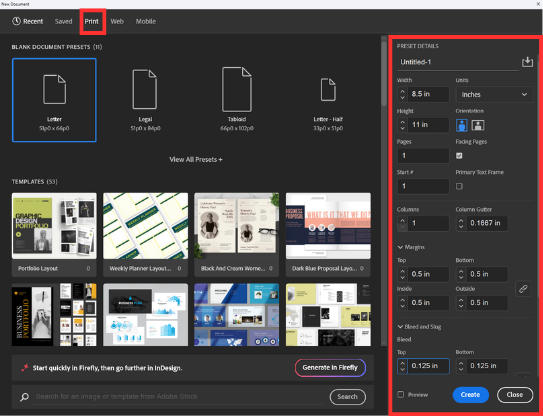
To start a new CMYK design in InDesign, go to File > New > Document. Choose Print as Intent, fill out the rest of the project details, and click Create. The Print Intent setting starts your document in CMYK so you don’t have to convert the file later on in the process. InDesign is the best program to use when designing for print because designing for print is its purpose by default.
How Do I Save An InDesign File As A PDF?
To save an InDesign file as a PDF:
- Go to File > Export.
- Name your file, choose PDF (Print) as the file type, and click Save.
- In the Export Adobe PDF window, choose an Adobe PDF preset then click Export.
For the best results in printing, you always want to export your file as a PDF. If you’re printing with PrintingCenterUSA, we make it easy to export your InDesign file. Download our PDF preset. Double-click PrintingCenterUSA.joboptions in the zip folder to load it (click Replace if prompted), then choose PrintingCenterUSA from the Adobe PDF preset dropdown. Our InDesign file saving guide has more in depth details.
How Do I Convert RGB to CMYK in Canva?
You cannot convert individual images in Canva from RGB to CMYK; however, you can export your file as a CMYK document.
To export your file as a CMYK document in Canva, you need Canva Pro.
- Click Share in the upper right corner.
- Click Download.
- Choose PDF Print as the file type and CMYK as the color profile.
- Click Download.
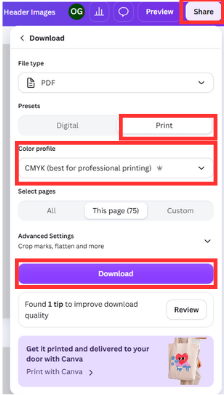
If you have a free Canva account, you can’t download in CMYK. When working with PrintingCenterUSA, we will automatically convert your file from RGB to CMYK for you. Simply download a PDF print file instead in Canva and upload it.
How Do I Convert A PDF To CMYK In Acrobat?
To convert a PDF from RGB to CMYK in Acrobat, you need Adobe Acrobat Pro.
- Open your PDF in Acrobat Pro.
- Go to File > Save As, give the file a new name, and click Save. The conversion can’t be undone so this keeps a copy of your original RGB file.
- Go to Tools > Print Production > Convert Colors.
- For Command choose Convert to Profile. For Conversion Profile choose your CMYK profile. Leave Rendering Intent on Use Document Intent.
- Click OK then click Yes when Acrobat warns you that the changes can’t be undone.
- Go to File > Save to save your CMYK PDF.
If you’re printing with PrintingCenterUSA we’ll automatically convert your RGB PDF to CMYK for you.
FAQ
Should I convert RGB to CMYK for printing? You should convert your RGB file to CMYK for printing. Full-color printing uses CMYK and screens use RGB. When you convert the file, yourself you can see the color shifts and adjust them before you print. If you send an RGB file we’ll convert it automatically.
Do printers automatically convert RGB to CMYK? Many printers do automatically convert RGB to CMYK as full-color printing uses CMYK. At PrintingCenterUSA, we automatically convert your RGB file to CMYK for you. You won’t see how your colors shift until you have the final product so converting the file yourself first gives you more control over the result.
Can I convert RGB to CMYK online? You can convert RGB to CMYK online using online converters. The catch is that you can’t preview or control how your colors shift and the converter may not use the color profile your printer prints with. For the best results, convert in your design program and ask your printer for their specific color settings.
How do I change a PDF from RGB to CMYK in Acrobat Pro? Go to Tools > Print Production > Convert Colors.Choose Convert to Profile.Choose your CMYK profile and click OK. The conversion can’t be undone, so save a copy of your original file first.
How do I convert RGB to CMYK without losing color in Illustrator? You can’t convert without some color shifts because CMYK can’t print every color a screen can show.
Tools That Make This Easier
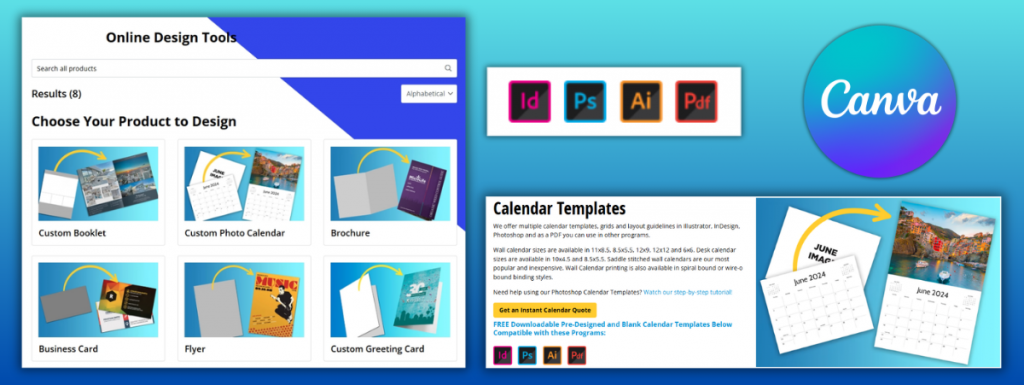
Not sure how to get your file print-ready? PrintingCenterUSA has you covered before you even place your order. Use our free online design tool, download a free Adobe template with our CMYK color profile already embedded, submit your file for a free file review, connect with a professional through our Find a Designer service or try out a Canva template. However you like to work, we have an option that fits.
Start Your Printing Project the Right Way
Now that you know exactly how to set up your pages, you can move forward without second-guessing your file. If you want to be sure everything is correct before you order, our free file review catches issues before they become problems. Start your printing project today!