














DPI vs PPI
When you’re designing, especially designing for print, a lot of unfamiliar terms can come up. A typical requirement, probably given by your printer, is that your file should be at least 300 DPI. You might brush it off and then have to figure out what it actually means. DPI and PPI are both terms you’ll come across when talking about producing crisp high-resolution images and there are distinctions between the two. We’ll go over what DPI vs. PPI means and how they’re different. We’ll also show you how to check the resolution of an image and walk you through how to properly set up your file in Photoshop so it can print at the high resolution you want.
What is DPI In Printing?
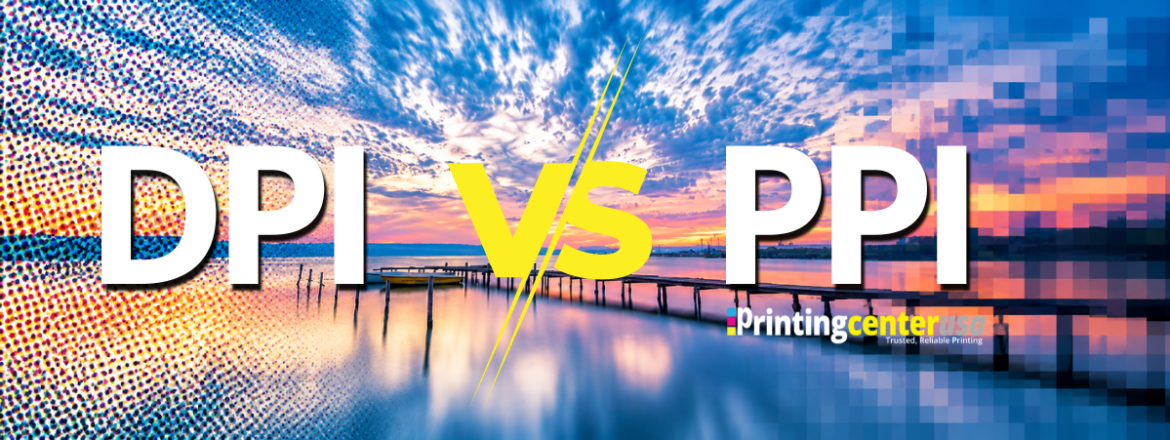
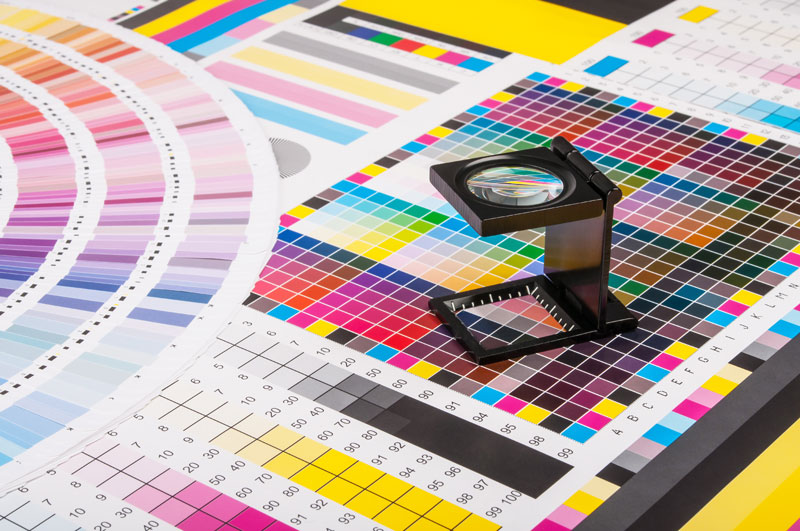
DPI stands for dots per inch. It measures how many tiny dots of ink a printer places in one inch of paper. The more dots packed into that inch, the sharper the detail and the smoother the colors look. DPI describes the printer, not the image file, and it’s a setting on the machine, so it isn’t something you build into your design. When PrintingCenterUSA prints your file, the press takes care of the DPI for you. Your job is to give it an image with enough detail to work with, and that’s where PPI comes in.
A lot of people, printers included, say 300 DPI when they really mean 300 PPI. Your image file is made of pixels, not dots, so the file itself is measured in PPI. When a printer asks for a 300 DPI file, they want an image with 300 pixels per inch at the size it’ll print.
What is PPI in Printing?
PPI stands for pixels per inch and it measures how many pixels fit in one inch of a digital image. Pixels are the tiny pixels are the tiny colored squares that make up a photograph on your screen. The more pixels in that inch, the more detailed the image is. A photo that looks high resolution at a small size can look pixelated, or blocky when you stretch it bigger because the same pixels get spread over more inches. That’s why PPI is the number you control when you build your file for print.
DPI vs PPI
DPI measures the dots of ink a printer places on paper and PPI measures the pixels in a digital image. They sound alike and people swap them all the time but they aren’t the same thing. DPI belongs to the printer and PPI belongs to your file. Your printer controls DPI and the designer controls PPI when your file is being built. For the best print results you want 300 PPI. The two work together. A file with enough pixels gives the printer more to work with.
What is 300 DPI?
300 DPI is the recommended resolution for a high-quality printing file. When printers give you this number, they really mean 300 PPI. Pixels and PPI belong to your image and dots and DPI belong to the printer, but 300 DPI is the term everybody uses.
What is 300 DPI in Pixels?
300 DPI means 300 pixels in every inch of your image, so the pixels you need for the highest quality depend on the size you’re printing. To find out how many pixels you need, multiply the size of your page in inches by 300. For a standard, 8.5 x 11 inch page, 8.5 inches x 300 = 2,550 pixels wide and 11 inches x 300 = 3,300 pixels tall. If your image has fewer pixels than that, it will look less crisp when it’s printed.
How to Calculate PPI?
To calculate PPI, divide the width of your image in pixels by the width you want to print it, in inches. For example, an image that’s 3,000 pixels wide printed 10 inches wide is 3,000 divide 10 = 300 PPI.
How to Check Image Resolution
To check an image’s resolution, find its width in pixels and divide it by the width in inches you want to print. For example, an image that’s 3,000 pixels wide printed 10 inches wide is 3,000 divided by 10 = 300 PPI. If its lower, like 150 PPI at 20 inches wide, the image won’t print the crispest.
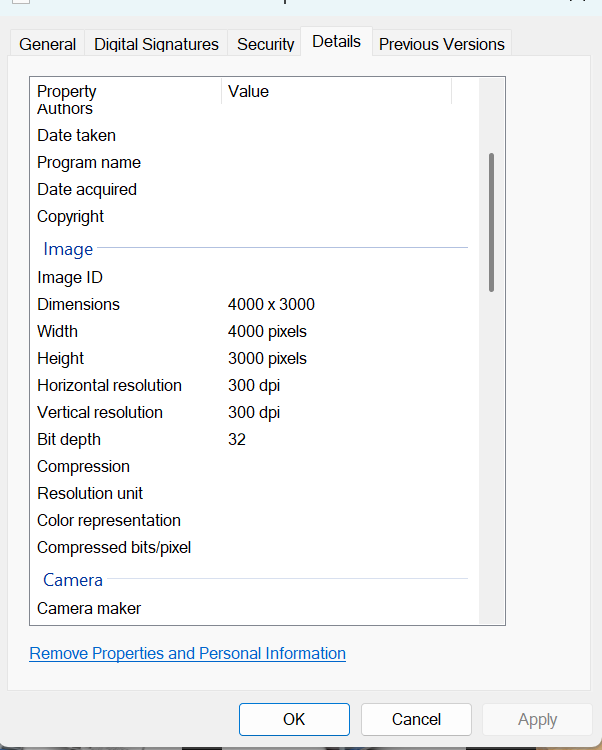
On a Windows computer:
- Right click the image file and click properties.
- Click the details tab at the top of the window.
- Scroll down to the Image Section. The dimensions will show the width and height in pixels.
- Divide the width in pixels by the width in inches you want to print. If your answer is 300 or higher, your image is ready.
On a Mac
- Double-click the image to open it in preview
- Click Tools in the top menu, then click adjust size
- Set the menu next to width and height to pixels. Click cancel so you don’t change the image.
- Divide the width in pixels by the width in inches you want to print. If your answer is 300 or higher, your image is ready.
In Photoshop
- Open the image and click image in the top menu
- Click Image Size
- Find the width and height and make sure the measurement is pixels. The numbers shown are your image’s size in pixels
- Divide the width in pixels by the width in inches you want to print. If your answer is 300 or higher, your image is ready.
Can You Increase DPI Of An Image?
You can technically change the number that is shown for DPI in an image, but you can’t add detail to the image. Typing 300 into the resolution box in a design program like Photoshop only changes how the file is labeled. The image still has the same pixels, so it’ll still print as it did before. Some programs can make the image itself bigger by adding new pixels, which is called upscaling. However, these new pixels are guessed based on the pixels that are already there, so they don’t bring back detail needed to make the image itself look better. Upscaling can help a little with smaller images, but it’s very limited in what it can do.
72 DPI vs. 300 DPI
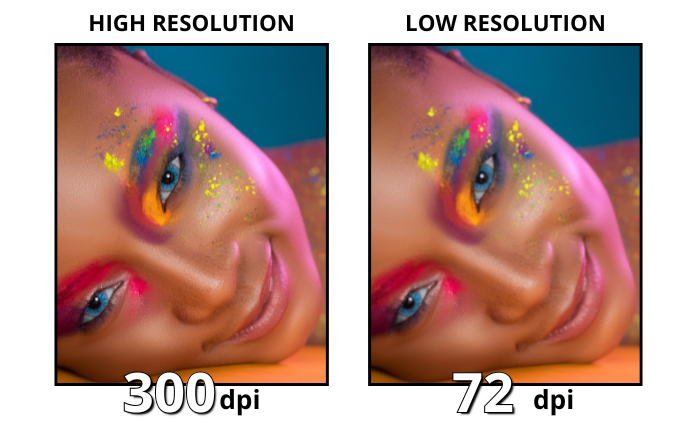
72 DPI is the old setting used for web images on older computer monitors. Those screens showed about 72 pixels in every inch. 300 DPI is the setting recommended for print. On screens, the 72 or 300 DPI saved in a file doesn’t change how crisp the image looks. An image on your screen can look fine because a screen just shows the pixels the image has. Paper is different because those image pixels get spread across a real size in inches, which can cause pixilation or blurriness.
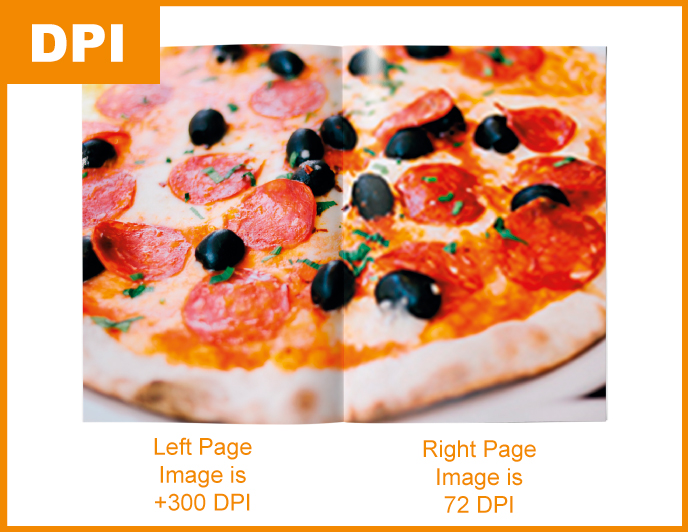
Today, most web graphics are 72 PPI. For print, you still want 300 DPI, which will give you enough pixels for sharp detail on paper. That really means 300 PPI at the size you’re printing. It’s generally not recommended to print with web images.
How to Change DPI in Photoshop
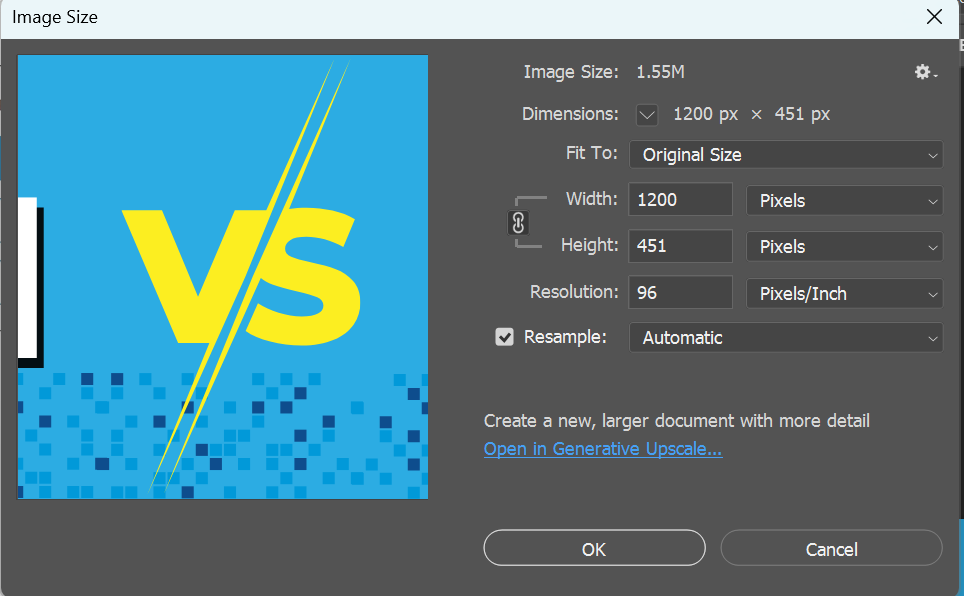
To change DPI in Photoshop go to Image > Image Size. Uncheck Resample and type 300 in the Resolution box. If you’re starting a design from scratch, set the resolution to 300 when you create the new file.
For a New File
- Open Photoshop and click File, then New.
- In the panel on the right, set the width and height to the size you’re printing and change the unit to inches.
- Type 300 in the resolution box and make sure it says pixels/inch.
- Click Create.
For an Existing Image:
- Open the image and click Image in the top menu, then Image Size.
- Uncheck the Resample box. This keeps Photoshop from adding new pixels.
- Type 300 in the Resolution box.
FAQ
Is 72 PPI the same as 300 DPI? No, 72 PPI has less than a quarter of the pixels per inch that 300 DPI has. That’s fine for a screen but it will look blurry or pixelated on paper.
Is 72 DPI the same as 72 PPI? The number is the same but they measure different things. PPI is the pixels in your image file and DPI is the dots of ink from a printer. When you see 72 DPI in a web image, it usually means 72 PPI.
Is 150 PPI the same as 150 DPI? People use them like they’re the same but PPI belongs to the image and DPI belongs to the printer. Either way 150 is half the detail of 300 so there’s potential it can look blurry when printed.
What is a good PPI for Photoshop? For printing, set your PPI to 300. For something that will only be seen on a screen, like a website image, 72 PPI is fine, and the usual setting.
How do you convert DPI to PPI? You don’t have to do any math. For print files the number stays the same so 300 DPI means 300 PPI. If you want to find the PPI of an image, divide its width in pixels by the width you’re printing in inches.
Is 300 DPI better than 600 DPI? For most printing you won’t be able to see the difference. 600 PPI has four times as many pixels as 300 PPI, which just makes your file bigger. Stick with 300.
Tools That Make Your Designing Easier
Not sure how to get your file print-ready? PrintingCenterUSA has you covered before you even place your order. Use our free online design tool, download a free Adobe template, submit your file for a free file review, connect with a professional through our Find a Designer service or try out a Canva template. However you like to work, we have an option that fits.
Start Your Booklet Project the Right Way
Now that you know exactly how to set up your pages, you can move forward without second-guessing your file. If you want to be sure everything is correct before you order, our free file review catches issues before they become problems. Start your book project today!